APPLIES TO: Business Central online
In this article, you learn how to install the Business Central App for Microsoft Teams. The app is available on the Teams marketplace, and you can use it with the Teams web, desktop, or mobile app.
Note
Your administrator may have set up things so that the app is automatically installed for you. To check whether the app is installed, open Teams, then choose Apps. Search for Business Central, then choose it when you find it. If you see Open on the Business Central page, the app is already installed.
Prerequisites
You have an Business Central online user account.
If you're not sure whether you have an account, or if you don't know your credentials for signing in, contact your company administrator to help you get started.
Installing the Teams app doesn't grant access to Business Central data. Your administrator must give you the required access. Learn more in Minimum requirements for Teams integration.
You hav access to the Teams desktop app or Teams in the browser. You can't isntall from a mobile device. If you open the installation guide in Business Central on a phone, it directs you to a desktop device instead.
Your organization's policies allow you to install apps in Microsoft Teams.
Add the Business Central app to Teams
There are three ways to install the Business Central app:
Option 1: From a link
This option is the quickest way to install the app.
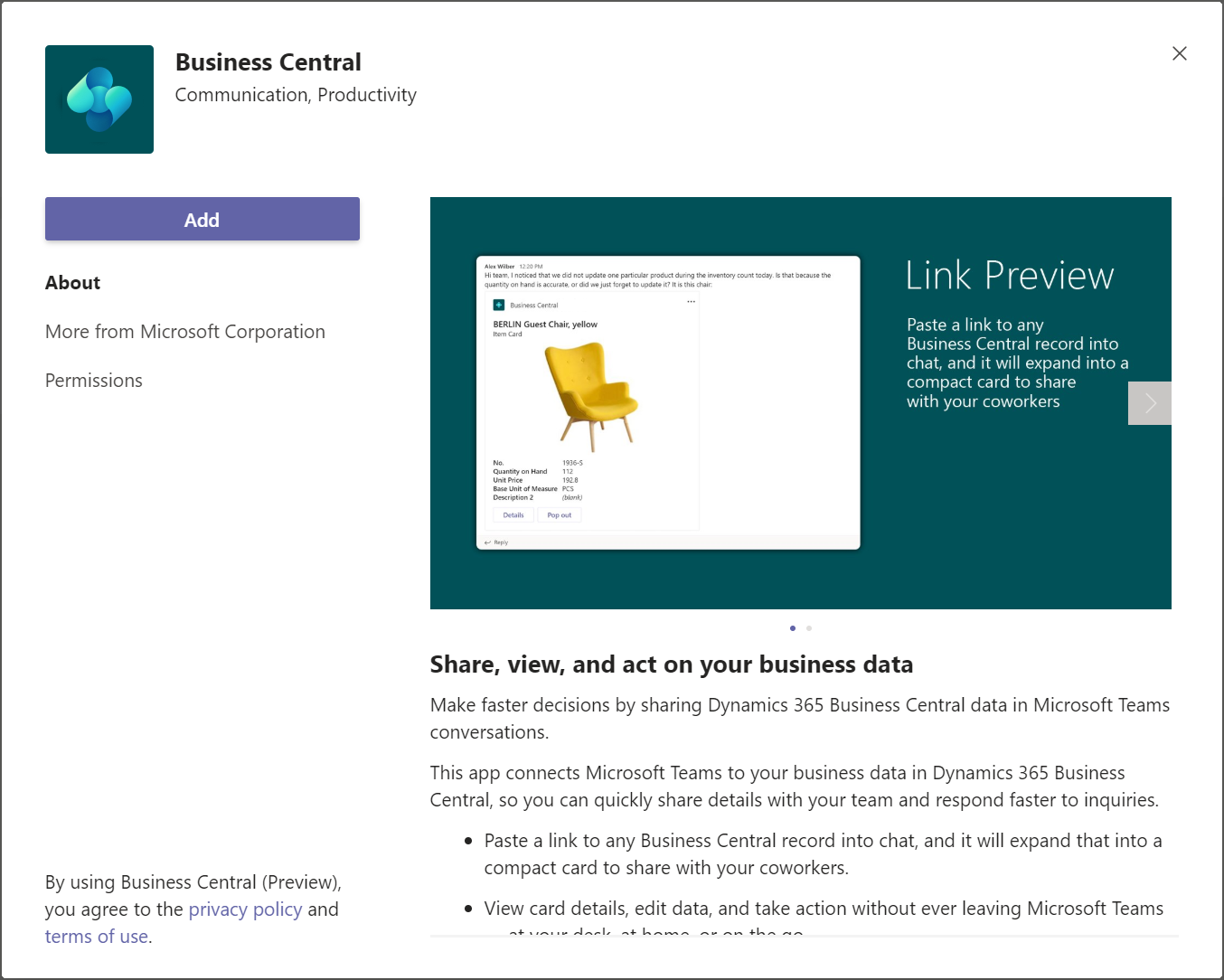
Open the Business Central app in Teams.
Wait for the Business Central app to appear.
Select Add.
Option 2: From Teams
- Open and sign in to Teams.
- In the left side, select Apps.
- Search for Business Central.
- Select the app when you find it.
- Select Add.
Learn more in Add an app to Microsoft Teams.
Tip
If you paste a link to a Business Central page into a Team conversation, and you don't have the app installed, you get a message like: Business Central wants to show a preview of this link. To install the app, select Show Preview and follow the instructions.
Option 3: From Business Central
- Open Business Central.
- Select Search (Alt+Q) in the upper-right corner, enter Get the Business Central App for Teams, and then select the related link.
- Select Get the app from store.
- Wait for Teams to open and the Business Central app to appear, then select Add.
Note
With any installation method, you might be asked to sign in to Business Central. Follow the on-screen instructions to sign in with your work account.
Start using Business Central in Teams
You're now ready to use the app in Teams to search for contacts or share Business Central records. Learn more in Searching for Customers, Vendors, and Other Contacts from Microsoft Teams or Share Records in Microsoft Teams.
Related information
Business Central and Microsoft Teams Integration Overview
Teams FAQ
Troubleshoot Teams
Change Company and Other Settings in Teams
Develop for Teams Integration
Try Business Central
Start a free trial!