Business Central allows you to configure your system in many ways. This article explains ways to monitor changes to your setup for financial auditing.
Set up the change log to capture changes
Note
Starting in 2026 release wave 2, Business Central automatically records changes to financial report definitions. You don't need to set up anything.
You can use the Change Log feature to capture changes to your setup. For example, you can find out what changed, who changed it, and when the change was made.
To use the Change Log to monitor your setup, you must specify the tables you want it to monitor. The following table lists some examples of finance setup tables where you might want to setup change tracking. Learn more in Log changes to know about the Change Log.
| If you want to audit changes to... | Table | Table ID | Learn more... |
|---|---|---|---|
| Financial Reporting | Report Definition | 88 | Audit changes to financial reporting |
| Financial Reporting | Row Definition | 84 | Audit changes to financial reporting |
| Financial Reporting | Column Definition | 333 | Audit changes to financial reporting |
| General ledger (G/L) | G/L Account | 15 | Audit changes to G/L accounts setup |
| General ledger (G/L) | G/L Account Category | 570 | Audit changes to account categories |
| Payment methods | Payment Method | 289 | Audit changes to payment methods |
| Payment terms | Payment Terms | 3 | Audit changes to payment terms |
| Posting groups | Gen. Product Posting Group | 251 | Audit changes to posting groups |
| Posting groups | Customer Posting Group | 92 | Audit changes to posting groups |
| Posting groups | Inventory Posting Group | 94 | Audit changes to posting groups |
| Posting groups | FA Posting Group | 5606 | Audit changes to posting groups |
| Posting groups | Vendor Posting Group | 93 | Audit changes to posting groups |
Learn more in Setting Up Finance for information on setting up the finance area.
Tip
If you want to track changes to data that isn't shown in the table, you can use the page inspection tool on the page that shows the data to find the corresponding table name and ID. Learn more in Inspecting and Troubleshooting Pages in the Business Central Developer and IT Pro help.
Get notified when system setup changes
To add an extra layer of security to your setup, you can monitor changes to fields and get an email when someone changes a value. Learn more in Monitor sensitive fields.
Analyze changes to your setup
You can use the Data Analysis feature to answer questions such as:
- Which definition changed?
- Who changed it, and when?
[Example of how to do data analysis on the Change Log Entries page (Who changed What data When).]
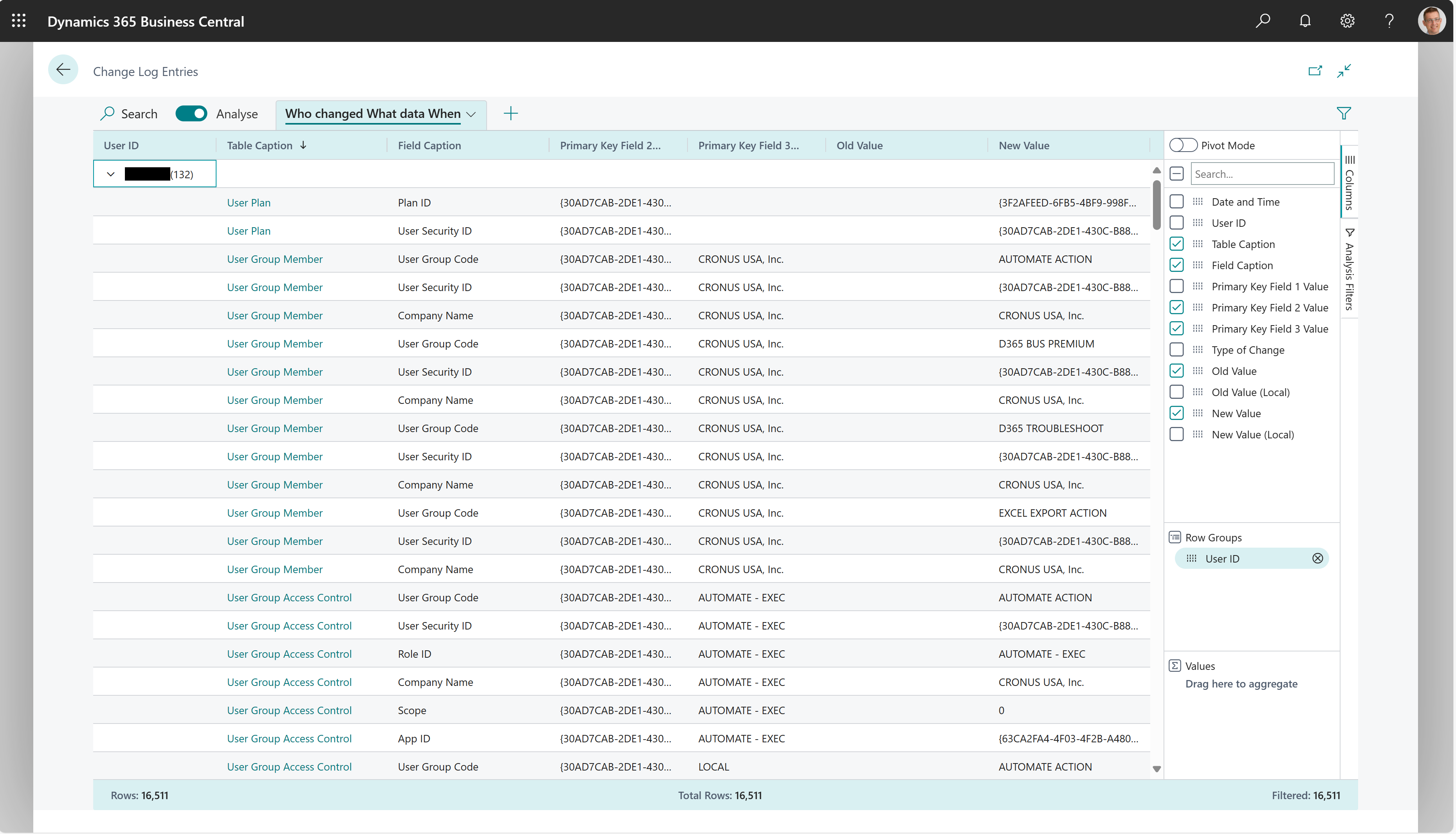
Learn more in Analyze data in the Change Log.