This article explains how to use the Data Analysis feature to analyze sales data directly from list pages and queries. You don't have to run a report or switch to another application, such as Excel. The feature provides an interactive and versatile way to calculate, summarize, and examine data. Instead of running reports using options and filters, you can add multiple tabs that represent different tasks or views on the data. Some examples are "My customers" or "Sales statistics," or any other view you can imagine. Learn more in Analyze list and query data with analysis mode.
Below are some examples of list pages that can provide the basis for ad-hoc analysis of sales processes:
- Sales Orders
- General Ledger Entries
- Customer Ledger Entries
- Item Ledger Entries
- Posted Sales Invoices
- Sales Return Orders
- Customers
Sales ad-hoc analysis scenarios
Use the Data Analysis feature for quick fact checking and ad-hoc analysis:
- If you don't want to run a report.
- If a report for your specific need doesn't exist.
- If you want to quickly iterate to get a good overview on a part of your business.
The following sections provide examples of sales scenarios in Business Central.
| Area | To... | Open this page in analysis mode | Using these fields |
|---|---|---|---|
| Sales (expected sales volume) | Analyze your expected sales volume. | Sales Orders | Sell-to Customer Name, Sell-to Customer No., No. , Amount, Document Date Year, and Document Date Month. |
| Sales (Customer sales by volume) | Get an overview of the customers that purchase the most, or that owe the most. | Customer Ledger Entries | Customer Name, Document No., Sales (LCY), Amount, and Remaining Amount. |
| Finance (Accounts Receivable) | See what your customers owe you, for example, broken down into time intervals for when amounts are due. | Customer Ledger Entries | Customer Name, Due Date, and Remaining Amount. |
Note
Customer Name is shown when Copy Customer Name to Entries is enabled in Sales & Receivables Setup. For entries without a copied name, group by Customer No. instead. Amount and Remaining Amount are in the document or entry currency. Filter by Currency Code to avoid combining currencies. For receivables in local currency, use Remaining Amt. (LCY).
Example: sales (expected sales volume)
To analyze your expected sales volume and sales amounts on sales orders for each customer by year or month, follow these steps:
- Open the Sales Orders list and turn on analysis mode.
- Go to the Columns menu and remove all columns (select the box next to the Search field).
- Turn on Pivot mode (located directly above the Search field).
- Drag the Sell-to Customer Name, Sell-to Customer No., and No. fields to the Row Groups area. Drag the fields in that order.
- Drag the Amount field to the Values area.
- Drag the Document Date Year and Document Date Month fields to the Column Labels area. Drag the fields in that order.
- To do the analysis for a given year or quarter, apply a filter in the Analysis Filters menu. The menu is on the right of the page, just below the Columns menu.
- Rename your analysis tab to Expected sales volume or something that describes this analysis for you.
Note
Amount includes all lines on the order, excluding VAT and including invoice discounts. It isn't limited to the unshipped or uninvoiced quantity. The Sales Orders list can include partially shipped orders and fully shipped orders that aren't fully invoiced.
Example: sales (customer sales by volume)
To produce an overview of the customers that purchase the most or that owe the most, follow these steps:
- Open the Customer Ledger Entries list, and switch on analysis mode.
- Go to the Columns menu and remove all columns (select the box next to the Search field).
- Drag the Customer Name field to the Row Groups area, and the Document No. field below it.
- Choose the Sales (LCY), Amount, and Remaining Amount fields.
- To do the analysis for a given year or quarter, apply a filter in the Analysis Filters menu. The menu is on the right of the page, just below the Columns menu.
- Rename your analysis tab to Customer by sales volume, or something that describes this analysis for you.
The following image shows grouped customer ledger entries with Amount and Remaining Amount.
[Example of how to do data analysis on the Customer Ledger Entries page.]
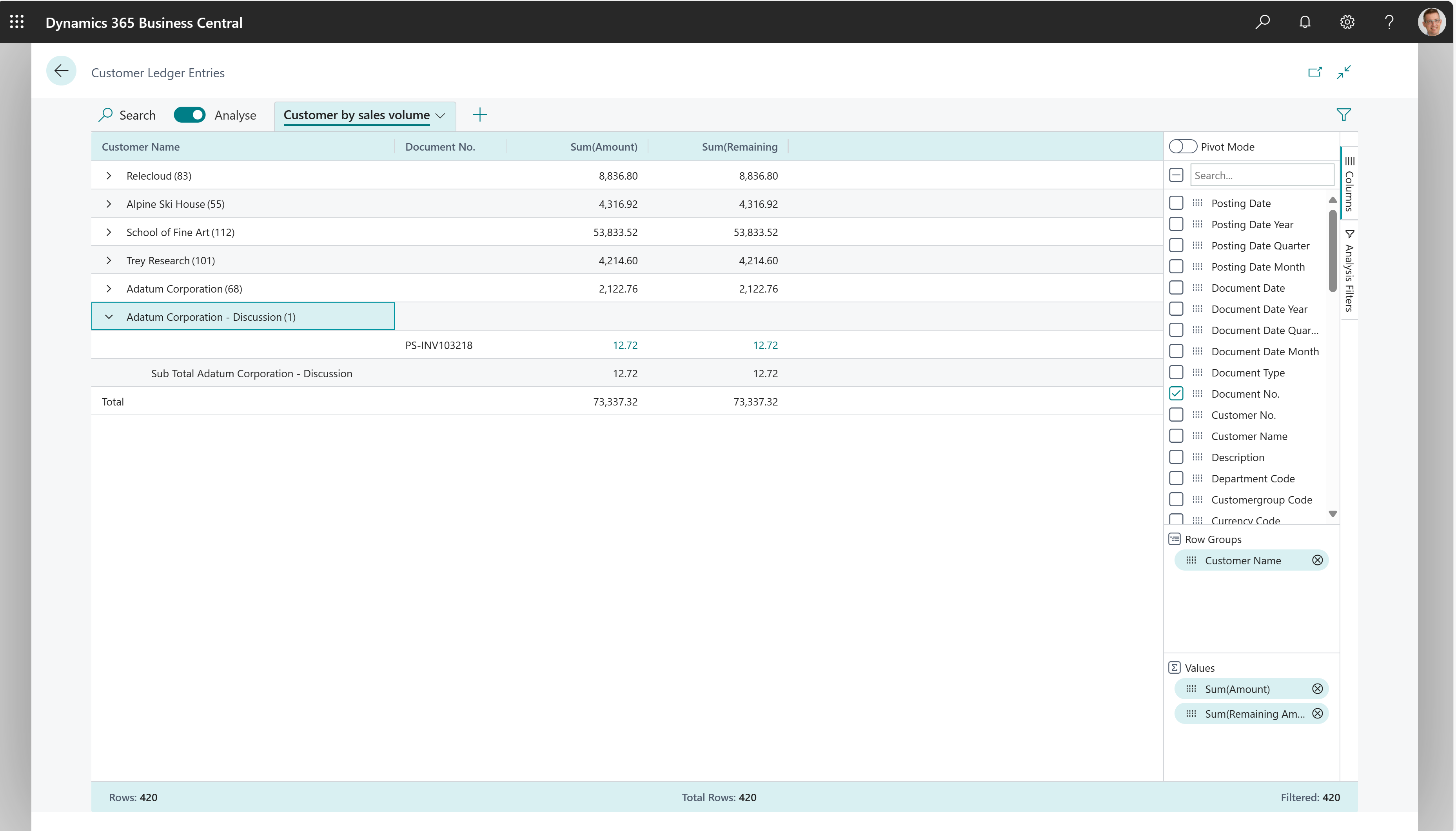
Sales (LCY) shows sales excluding VAT in local currency. Amount shows the ledger entry amount, which can represent an invoice, payment, credit memo, or another transaction type. Use Sales (LCY) to compare sales, rather than summing Amount across all transaction types.
Example: finance (accounts receivable)
To see what your customers owe you, maybe broken down into time intervals for when amounts are due, follow these steps:
- Open the Customer Ledger Entries list and turn on analysis mode.
- On the Columns menu, remove all columns (select the box next to the Search field).
- Turn on Pivot mode (located directly above the Search field).
- Drag the Customer Name field to the Row Groups area, and drag the Remaining Amount field to the Values area.
- Drag the Due Date Month field to the Column Labels area.
- To do the analysis for a given year or quarter, apply a filter in the Analysis Filters menu. The menu is on the right of the page, just below the Columns menu.
- Rename your analysis tab to Aged Accounts by Month, or something that describes this analysis for you.
Data foundation for ad-hoc analysis on sales
After you enter information on a sales order and add all the sales order lines, you can post the order. Posting can create a shipment, an invoice, or both, depending on the posting options. Business Central updates the customer's account, general ledger, and item ledger entries as applicable:
- When you invoice a sales order, entries are created in the G/L Entry table and the customer's account in the Cust. Ledger Entry table, including a general ledger entry in the relevant receivables account. In addition, posting the order might result in a VAT entry and a general ledger entry for the discount amount.
- Shipping item lines creates item ledger entries in the Item Ledger Entry table. Invoicing G/L account lines creates general ledger entries in the G/L Entry table. Resource lines can also create entries in the Res. Ledger Entry table.
- Posted sales shipments are recorded in the Sales Shipment Header table, and posted sales invoices are recorded in the Sales Invoice Header table.
Learn more in Posting sales.
Related information
Posting sales
Analyze list and query data with analysis mode
Sales analytics overview
Analytics, business intelligence, and reporting overview
Sales overview
Work with Business Central
Start a free trial!