In this article, you'll learn about the different aspects of Power BI integration with Business Central to help you understand its implementation and use.
Components of Power BI integration
The following table describes the major components involved with Power BI integration.
| Component | Description |
|---|---|
| Power BI | A cloud-based report hosting and management service. |
| Power BI Desktop | An authoring tool for building and viewing reports. Download it for free from the Microsoft Store and install it locally. Create dashboards in the Power BI service. |
| Business Central | Online or on-premises solution with connectors exposed to Power BI and the ability to embed a Power BI part. |
What's available from the start
The following table describes available features.
| Feature | Business Central online or on-premises support |
|---|---|
| Power BI connectors | Both. Different connectors for online and on-premises. Same connector used for Power BI Desktop and Power BI Service |
| Embedded experience for viewing a given report inside a FactBox in Business Central | Both. Requires configuration to display reports for on-premises. |
| Power BI report management from Business Central | Online |
| Default Power BI reports on role centers deployed to Power BI | Online |
| Power BI Apps on Microsoft Marketplace | Online |
Architecture and data connections
Business Central integrates with Power BI through a connector that uses OData. The data source for Power BI reports is exposed as API pages, API queries, and OData web services.
[Diagram of Power BI connecting to Business Central data and displaying embedded reports.]

Starting in February 2022, new Power BI reports for Business Central online use a secondary, read-only database replica by default. The database replica is part of the read scale-out capability in Business Central online. This configuration frees up the main database for transactions, which enhances the performance of the system. Connecting to the read-only database replica is an integral part of the Business Central online connector, and requires no extra setup on your part. Older reports might still use the main database. You can override the default with the connector's UseReadOnlyReplica option. Learn more in Customize language, timeout, database replica, or page size.
Workflow for connecting and publishing reports
The following diagram illustrates the basic workflow for users when connecting Business Central to Power BI.
[Diagram of the workflow for connecting Business Central to Power BI and publishing reports.]
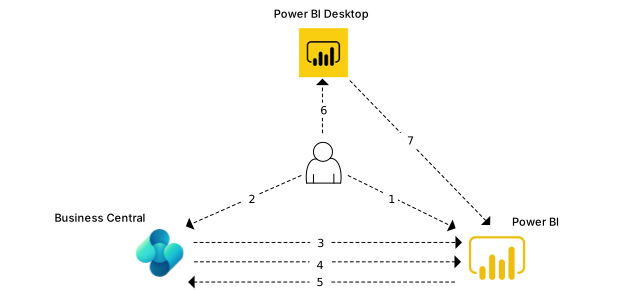
- User signs up for a Power BI account.
- User connects to Power BI from Business Central.
- Business Central verifies the license.
- Business Central deploys default reports to the Power BI service. This step only happens for Business Central online.
- Business Central makes reports in Power BI available for selection in Business Central. Default reports are automatically displayed in Power BI parts.
- User creates a report in Power BI Desktop.
- User publishes the report to the Power BI service. The reports are then available for selection in Business Central.
Related information
Business Central and Power BI
Power BI for consumers
What is Power BI?
Quickstart: Connect to data in Power BI Desktop
Power BI documentation
Business Intelligence
Getting Ready for Doing Business
Importing Business Data from Other Finance Systems
Setting Up Business Central
Use Business Central as a Power BI Data Source
Use Business Central as a Power Apps Data Source
Use Business Central in Power Automate