Some people work in multiple companies in Business Central, and some also work in more than one organization, such as external accountants, or employees and managers of corporations with multiple subsidiaries. For these users, and many others, the company hub serves as a landing page that gives a financial overview across companies and environments. It provides users with a tool for managing work across the various environments that they work in, across companies, environments, and regions.
You can access the company hub by switching to the Company Hub role in My Settings, or by opening the Company Hub page directly. You can do the same work in both places, but actions are placed slightly different in menus.
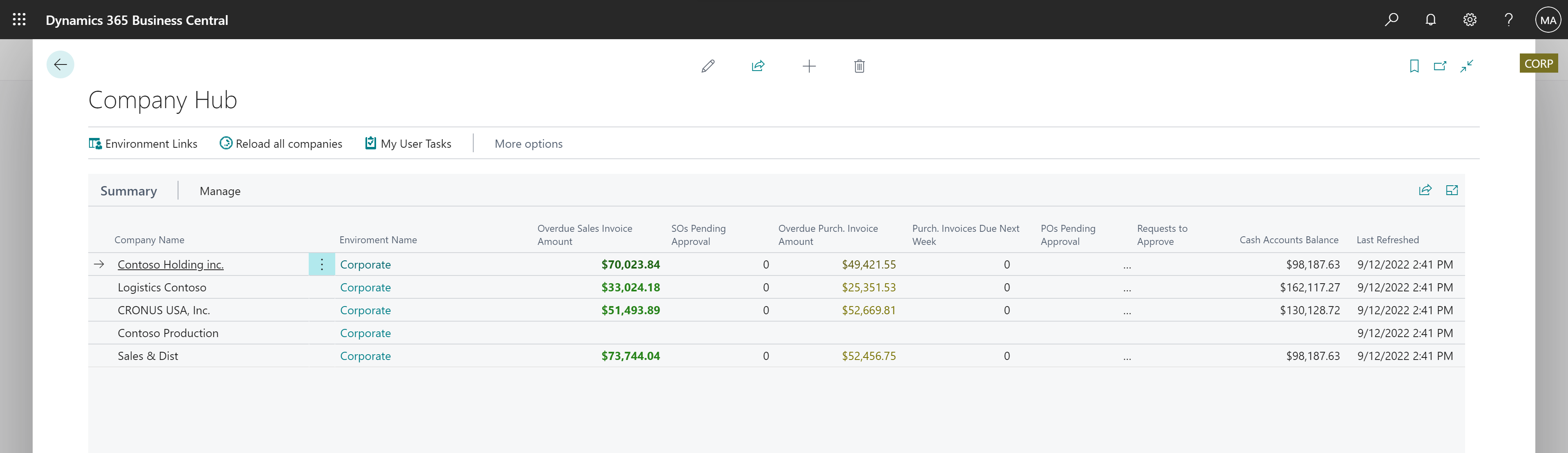
[Shows the company hub page that lists all companies.]
Note
You can connect the company hub to as many companies as you need. However, you can only connect the company hub to companies that are hosted in Business Central online.
Company Hub home page
If you use the Company Hub role, your home page shows a list of connected companies, including key performance indicator (KPI) data and links to open each company. Choose the Company Hub action to open the company hub, where you can work more closely with each company.
Tip
To access a specific company in Business Central, choose the name of the company, or choose the Go To Company menu item. The company opens in a new browser tab. You might need to sign in.
[Actions for a company that is listed in the company hub.]

You can add new companies, such as when you get a new client, or when your corporation adds a new subsidiary. Learn more in Add Companies to Your Company Hub.
Tip
To refresh the data in the company hub, you must have access to the data in the companies that the data comes from.
Assigned tasks
In Business Central, you can assign tasks to yourself and others, and others can assign tasks to you. The company hub gives you an overview of assigned tasks for each company. Choose My User Tasks on the Home page to see incomplete tasks assigned to you.
My user tasks
The My User Tasks list helps you prioritize your day by showing more information about tasks assigned to you across all your companies.
You can sort by due date, for example, or any other type of data that helps you prioritize your day. By default, the list shows incomplete tasks that are assigned to you. You can add filters to only show tasks that are marked as high priority, for example.
To pick up a task, select its Title in the list of pending user tasks to open the linked page. You can also use Go To Company to open the user task list in the source company.
When you have completed a task, select Mark Task Complete.
Learn more in Environment links for information about companies and environments.
Access the company hub
Security groups replace user groups starting in 2023 release wave 1 (version 22). User groups were removed in 2024 release wave 2 (version 25).
Security groups work like user groups. Admins assign permissions to the security group so its members can do their jobs. Learn more in Control Access to Business Central Using Security Groups.
To access the company hub, you need the D365 COMPANY HUB permission set or equivalent permissions. An administrator can assign permissions directly or through a security group. You must also have access to the connected companies that you want to open or refresh. Learn more in Create Users According to Licenses.
Important
Your company overview shows links assigned to you and any sample entries. A company link doesn't grant access to that company's data. Your permissions in the connected company determine which data you can access and refresh.
If you can't find the company hub, and you know that you have been granted access to it, then check with your administrator if the company hub is listed in the Extension Management page. Learn more in Customizing Business Central Using Extensions.
Set up the company hub
To start using the company hub, you must add one or more companies to your dashboard. Learn more in Add Companies to Your Company Hub.
But to add a company, you must have been given access to one or more instances of Business Central in addition to the company that you use the company hub in.
For example, if you're an accountant, your clients can invite you to their Business Central. Learn more in Inviting Your External Accountant to Your Business Central.
Your administrator must set up your access in the connected environment and assign the permissions you need in each company. Learn more in Create users according to licenses.
Related information
Add companies to your company hub
Accountant Experiences in Business Central
The Company Hub for Business Central Extension
Change Basic Settings