In this article, you learn how to use the Change how the data is replicated feature in Business Central online. This feature allows you to include or exclude specific tables from cloud migration and specify whether to replace the full table with data from the on-premises table or to update and insert only the missing records.
Considerations before you start
This feature is an expert feature that can lead to incorrectly replicated data or losing access to the tenant. The default settings were defined after careful consideration. Make sure you fully understand the application functionality you want to change so that you include or exclude all related tables.
We strongly advise against modifying permission-related tables because permissions from on-premises and online aren't compatible. We recommend setting up the permissions again by using the online permission sets. Replicating permissions can lead to losing access or to some application features not working properly. If you lose access, delete and create the environment again or use point-in-time restore to the point before replication.
Prerequisites
- Run cloud migration setup
- Use a supported migration from Business Central. These settings aren't available for every migration provider.
Change how data is replicated
Select Search (Alt+Q) in the upper-right corner, enter Cloud Migration Management, and then choose the related link.
On the Cloud Migration Management page, select Actions > Change how the data is replicated.
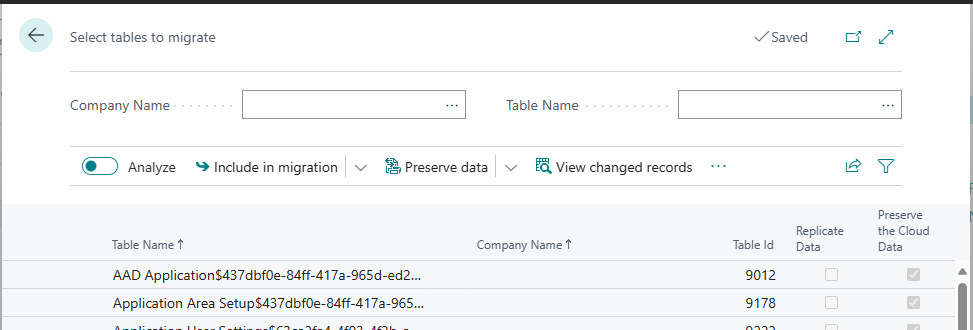
The Select tables to migrate page opens to display the tables that are included in the migration for the companies you chose to include in the cloud migration setup.
[Screenshot of the Select tables to migrate page for changing cloud migration replication settings.]
Each table is listed by its name, company, and ID, plus the following fields that specify how its data will be migrated:
Field Description How to change this setting Replicate Data If this checkbox is selected, then the table and its data are included in the migration to the online tenant. If this checkbox is cleared, the table and its data are excluded from cloud migration. To include a table in the cloud migration, select the table in the list, then select the Include in migration action. To exclude a table, select the table in the list, then select Exclude from migration. This action clears the Replicate Data checkbox.
TIP: Use the Shift and Ctrl keys when selecting tables to change multiple tables at once.Preserve the Cloud Data If the checkbox is selected, then data already included in records of the online table remains. Only records in the on-premises table that are missing in the online table are copied. If the checkbox is cleared, all data in the online table is deleted before copying the data from the on-premises database. To preserve data in the online table, select the table in the list, then select the Preserve data action. To delete the data in the online table during replication, select the table in the list, then select Clear data before migration. This action clears the Preserve the Cloud Data checkbox.
TIP: Use the Shift and Ctrl keys when selecting tables to change multiple tables at once.You can't enable Preserve data for per-company tables or clear Preserve the Cloud Data for the
Tenant Mediatable. Some system tables don't allow changes to replication settings. When shown, the View only field identifies tables whose settings can't be changed.Use the Company Name and Table Name fields to filter the list and help you find specific tables.
Field Description Company Name Select the company you want to filter on or select All to filter on all companies that are included in the cloud migration. Select Per database tables to filter on only tenant-level tables that aren't specific to a company. Table Name Find tables whose names contain the text that you enter, making it easier to find the related tables.
View tables that aren't using default settings
To get a list of tables for which the Replicate Data or Preserve the Cloud Data fields aren't using the default settings, select the View changed records action.
Reset to default settings
To revert a table to the default Replicate Data and Preserve the Cloud Data settings, select the table in the list and then select the Reset to default action.
View a history of changes to replication settings
To view a history of all changes made to the Replicate Data or Preserve the Cloud Data fields on tables, select the Show history action.