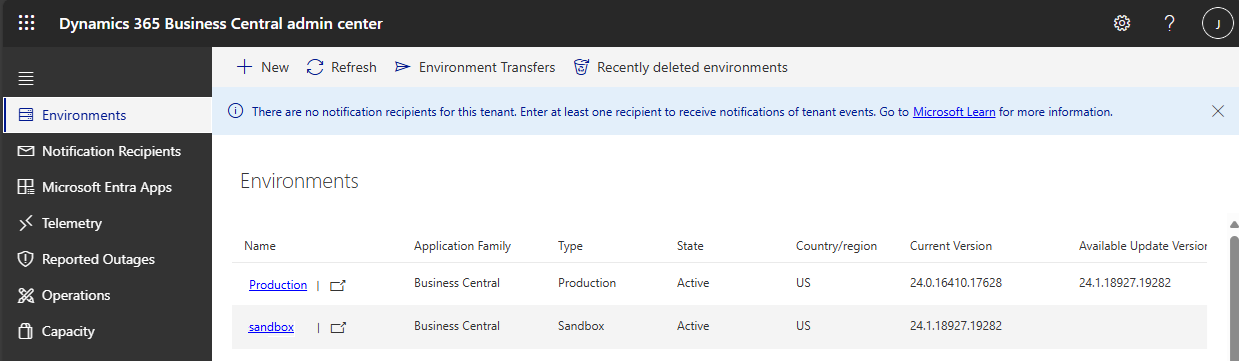
The Environments tab of the Business Central administration center provides an overview of the Business Central production and sandbox environments for the tenant. You can manage updates for each environment.
[Business Central Admin Center.]
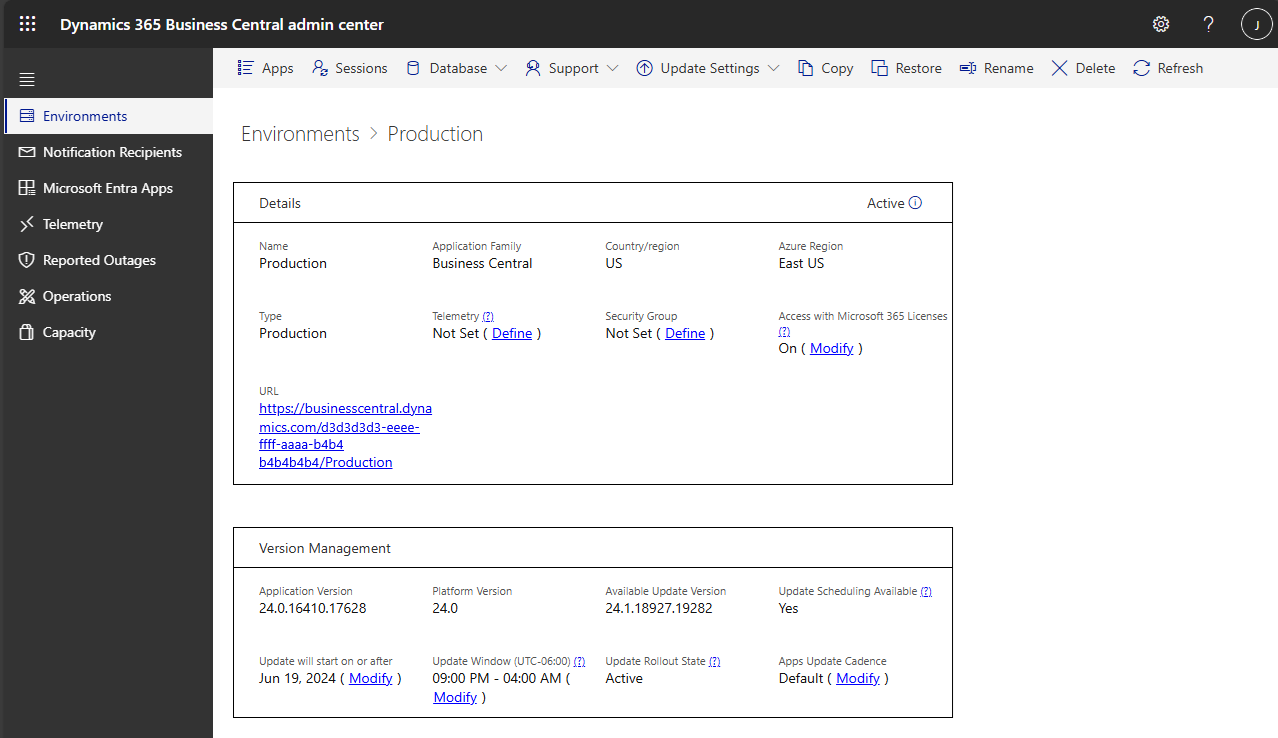
Viewing details for an environment
In the environments list, you can view more details by choosing the link in the Name column.
[View details about an environment.]
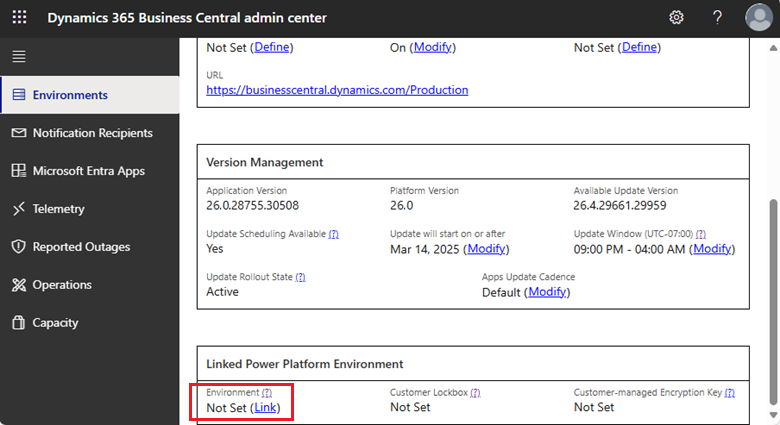
Linked Power Platform environment
A Business Central environment can link to a Power Platform environment of the same type (production or sandbox). When you link to a Power Platform environment, the Business Central environment inherits selected settings from the Power Platform environment. The Business Central admin center shows the status. It also provides a default target environment when setting up features that integrate Business Central with Power Platform and other Dynamics 365 products. Links between Business Central environments and Power Platform environments are exclusive. You can't simultaneously link multiple Business Central environments to a single Power Platform environment or vice versa.
Important
Business Central and Power Platform environments can currently be linked across Azure geographies as Power Platform environments are created for Macro Region Geographies. However, enabling customer-managed encryption keys requires the linked environments to reside in the same geography. If no Power Platform environment exists in the geography of your Business Central environment, purchase Microsoft 365 Advanced Data Residency to create a new Power Platform environment in the required geography.
When a link exists between a Business Central environment and a Power Platform environment, several environment lifecycle operations are blocked on the Power Platform environment. You can't delete the Business Central environment if it's linked to a Power Platform environment. For environment lifecycle operations on the Business Central environment that create a new environment, such as Copy and Restore, the target environment isn't linked to a Power Platform environment as part of the operation. You can link the target environment to a different Power Platform environment after the operation that creates the environment completes.
Types of environments
You can create different types of environments. Choose the type of environment based on what you need it for. Learn more in Production and Sandbox Environments.
Production environments
Production environments are meant to be precisely that: Environments that a business can run their daily business in Business Central in, deployed on performance tiers in Azure with a guaranteed high level of availability and support.
Production environments are backed up automatically and frequently to help protect business data. For more information, see How often are production databases backed up?.
You can create additional production environments for training or performance testing, for example. However, for training purposes, in many cases organizations will prefer to create a sandbox environment with production data. You can also create additional production environments to support offices in different countries/regions.
A production environment can have a state of suspended if the subscription has been suspended, or if the environment has not been accessed for a long time. In those cases, you can only publish extensions to such an environment if it only has evaluation companies. If the suspended environment has been used for actual production so that it contains companies that are not evaluation companies, then you cannot publish extensions to it.
Note
The Premium and Essential subscription types give each Business Central customer one production environment and three sandbox environments at no extra charge. If the customer needs more production environments, they can buy more through their CSP partner. Each extra production environment includes three extra sandbox environments and 4 GB extra tenant-wide database capacity.
Administrators can create the additional environments in the Business Central administration center. The environments can be created for any country or region where Business Central is available, on any available version. The environments quota is applied when you try to create a new environment, or copy or restore an existing environment.
Sandbox environments
Sandbox environments are meant to be precisely that: Environments that you can play around with, use as a testbed for development, and delete at will. You can deploy apps straight from Visual Studio Code to a sandbox environment, and you can attach a debugging session to a sandbox.
You can also safely use sandboxes for training, such as for following a learning path from Microsoft Learn, because it's a safe environment to experiment with. If anything goes wrong, you just delete the sandbox and start over.
Sandbox environments can be created on or updated to preview versions during preview periods to preview and test upcoming functionality ahead of its official availability. For more information, see Preview environments.
Sandbox environments are handy for certain types of development scenarios because the debugging endpoint is open by default. This means that you can attach Visual Studio Code to a running system and debug through running code. It also allows you to publish directly to the environment from Code.
Important
Outbound HTTP calls from apps/extensions are blocked by default and must be approved for each extension, otherwise instead of an external call, the system will display the following error message: The request was blocked by the runtime to prevent accidental use of production services.
To enable outbound HTTP calls, go to the Extension Management page in Business Central, and choose Configure. Then, on the Extension Settings page, make sure that Allow HttpClient Requests is selected. This setting must be enabled for each app/extension, including library apps.
Sandbox environment resource configuration
[This article is prerelease documentation and is subject to change.]
Important
- This is a production-ready preview feature.
- Production-ready previews are subject to supplemental terms of use.
Environment databases for sandbox environments are provisioned with different configurations than those for typical production environments. For some scenarios typically executed on sandbox environments, such as using the Performance Toolkit Extension or testing Cloud Migration data upgrades, administrators may need a production-like configuration for their sandbox environment.
Administrators can temporarily match the database configuration of their sandbox environment to that of a typical production environment:
- Navigate to the Business Central administration center and select the sandbox environment.
- Select Match production configuration in the action ribbon.
- Select Save in the pane that opened. The sandbox environment's database configuration is matched to that of a typical production environment immediately.
- The sandbox environment's database configuration remains matched to that of a typical production environment for 72 hours, and automatically moves back to its prior configuration during the environment's first update window after the 72 hour period ends.
Important
Changing the environment's configuration restarts the environment; ensure no users are active when you start this operation to avoid interrupting their work.
This operation is limited to three 72-hour configuration matches per tenant per calendar month; this allocation renews automatically once a new calendar month starts. It's not possible to match the environment for a period shorter or longer than 72 hours, and it's not possible to run this more than thrice per calendar month.
Create a new environment
The Business Central administration center provides an easy method for creating environments for the tenant. For example, you might use a production environment for training purposes, and then decide to start using Business Central to run the business. In this case, you can delete the original production environment and then create a new production environment.
Note
The Premium and Essential subscription types give each Business Central customer one production environment and three sandbox environments at no extra charge. If the customer needs more production environments, they can buy more through their CSP partner. Each extra production environment includes three extra sandbox environments and 4 GB extra tenant-wide database capacity.
Administrators can create the additional environments in the Business Central administration center. The environments can be created for any country or region where Business Central is available, on any available version. The environments quota is applied when you try to create a new environment, or copy or restore an existing environment.
You can create new environments that are either production environments or sandboxes. You can also copy an existing environment. Learn more in Copy a Production or Sandbox Environment.
Important
Make sure that you understand the limitations of a sandbox before you create a new sandbox environment. Learn more in the Sandbox environments section.
Create a new environment that isn't a copy of an existing environment
In the navigation pane on the left side of the Business Central administration center, select Environments, and then select New on the action ribbon.
In the Create Environment pane, enter a name for the new environment.
In the Environment Type list, select Production or Sandbox.
In the Application family field, enter the type of solution that this environment is based on if it isn't Business Central.
In the Country list, select the country for the environment. The specified country determines the localization for the environment and the Azure region in which the environment is created and stored.
Tip
To create a sandbox environment that's based on the Business Central W1 (nonlocalized) version, choose a country that uses the W1 BaseApp, as indicated in the Country/regional availability and supported languages article.
In the Version list, select the relevant application version for the new environment.
For sandbox environments, preview versions might be available. Preview versions provide early access to new functionality, but environments on these versions aren't updated once the version becomes available and are deleted automatically when the preview ends.
Important
You can create environments on any available version. For major version 25.x, not all minor versions are available for every country during the entire 25.x update period. At least one minor version of 25.x is available during this period.
Select Create.
The new environment isn't accessible until the State becomes Active.
Note
The new environment has a default update window that guarantees future updates don't run between 8:00 PM and 6:00 AM local time for the environment country/region. You can change this update window after you create the environment. Learn more in Managing Updates in the Business Central Admin Center.
To delete an environment, choose the environment on the Environments tab of the Business Central administration center, and then select Delete on the action ribbon.
Link Business Central environment to Power Platform environment
To complete this task, you need to be an internal admin with a role that grants access to the Business Central administration center and permissions to update the properties of the targeted Power Platform environment, such as environment administrator.
Important
Users with an admin Microsoft Entra role assigned might not automatically gain the environment administrator role on the Power Platform environment. If the Power Platform environment doesn't show up as available to link the Business Central environment to, verify that you're an Environment Admin for the Power Platform environment. Learn more in Role-based security roles.
Sign in to the Business Central admin center and open the environment.
In the Linked Power Platform Environment section on the environment page, select Link under Environment or Modify to change to another Power Platform environment.
Note
Only Power Platforms that meet the following conditions are available to link:
- In the Ready state.
- Same type of environment (Production or Sandbox).
- Not linked to another environment already.
In the Link pane, select the Power Platform environment, and then select Link.
Unlink environments
You can unlink the Business Central environment from the Power Platform environment. When you unlink an environment, it disables any settings the Business Central environment inherits from the Power Platform environment but doesn't disable any integrations set up between the two environments. Examples of these integrations include Power Automate flows created from the Business Central environment or data integration with Dynamics 365 Sales or Dynamics 365 Field Service.
You can relink unlinked environments to the same or different environments.
Log of administrative operations
The Operations section of Business Central administration center provides a log of operations that internal administrators and delegated administrators from the partner make in the Business Central administration center or through the admin center API. Use this log to view which operations were created and when. You can also access detailed error messages in this log, should any operation fail.
Operations
Currently, the log includes the following operations:
| Type | Description | Admin center | API | Extension Management Page |
|---|---|---|---|---|
| Copy environment | An environment was created from a copy of another environment. | Copy an environment | Copy environment | |
| Create environment | A new environment was created | Create a new environment | Create a new environment | |
| Soft delete environment | An environment was soft deleted. | Delete an environment | Delete environment | |
| Recovered environment | A deleted environment was recovered. | Recover an environment | Recover environment | |
| Delete environment | An environment was permanently deleted. | Delete and recover environments | Delete environment | |
| Modify environment | One of the following operations was done on an environment: <ul><li>Set update window</li><li>Set Application Insights connection string</li><li>Set security group</li><li>Clear security group</li><li>Reschedule update </li><li>Set access with Microsoft 365 licenses.</li></ul> | Managing updates Environment telemetry Business Central Admin Center API - Environment Settings | Manage access to environments | |
| Move environment | An environment was moved to another Microsoft Entra organization. | Transfer environments | ||
| Rename environment | Environment was renamed. | Rename environments | Rename environment | |
| Restart environment | Environment was restarted | Restart environment | ||
| Update environment | An environment is updated to a newer version. | Managing updates | Environment settings | |
| Environment app hotfix | A hotfix was applied to an app. | Schedule environment hotfix | ||
| Environment app install | App was installed. | Install an app | Install and uninstall extensions | |
| Environment app uninstall | App was uninstalled. | Uninstall an app | Install and uninstall extensions | |
| Environment app update | App was updated to new version. | Install an app update | Update an app |
Retention period
The system keeps operations for 180 days, and then deletes them. Operations are stored for a particular environment. If you permanently delete the environment, the system also deletes operations that belong to it, even if they're less than 180 days old. The system retains the environment delete operation for 180 days even after you permanently delete the environment. To store operation details outside of an environment's scope and for more than 180 days, use auditing events in Purview.
Related information
Manage tenant specific notifications
Managing apps
Managing updates in the Business Central admin center
Managing sessions in the Admin Center
Copy a production or sandbox environment
Rename environments in the Admin Center
Restoring an environment in the admin center
Transfer environments
Introduction to automation APIs