Use cues to display business data and action tiles to start tasks on role centers. This article explains how to create both with AL.
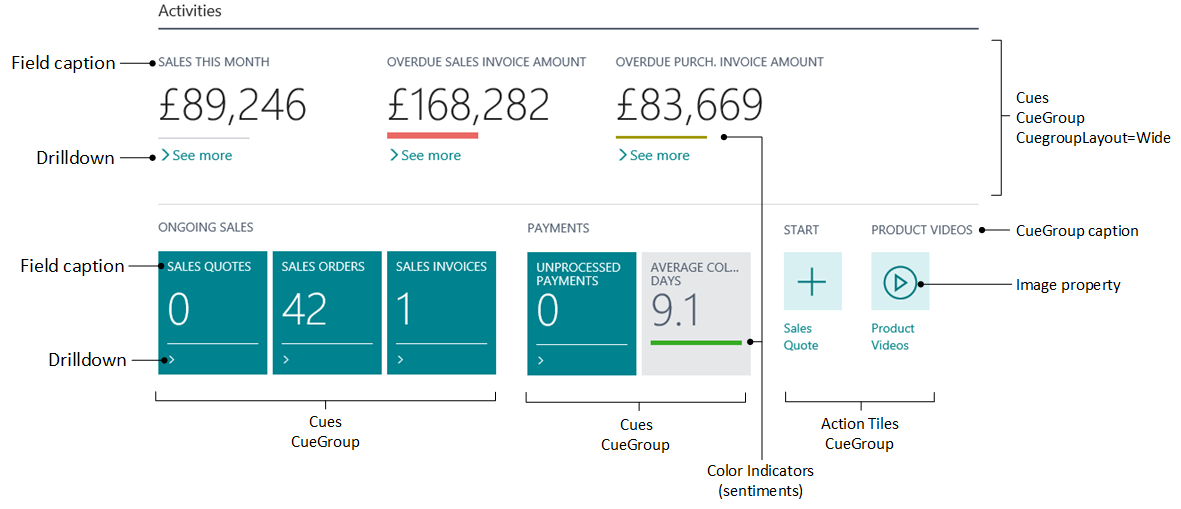
The following illustration identifies cue groups, drill-down links, captions, and action tiles. Their appearance can vary by version and configuration.
[Annotated role center cues showing normal and wide layouts, drill-down links, and action tiles.]
Note
Page extensions don't support adding actions to existing cue groups or modifying or moving existing cue group actions.
Designing numeric cues
A cue displays business data, such as the number of open sales invoices. You can configure a cue to drill down to records, open another page, or run code. A page field in a cuegroup displays the value. The following example uses table fields for raw or calculated values.
Normal and wide layouts
There are two layout options for cues: normal and wide.
The normal layout displays cues as tiles. Groups fill the available workspace width, so multiple groups can appear side by side.
The wide layout emphasizes cues with large values, such as monetary amounts. You can interleave wide and normal cue groups. Place wide groups before normal groups when you want to emphasize them. Wide cues retain their wide styling wherever they appear. Depending on the number of visible cues, the desktop client can add dividers between groups and expand their containing CardPart to the full workspace width. Set the CuegroupLayout property to
Wide.
Note
The wide cue layout is supported in the desktop web client. Phone and tablet clients use their mobile cue layout.
The Caption and CaptionML properties of the cuegroup control are ignored when the layout is wide.
Supported cue data types
Cues support Integer and Decimal values. Other data types aren't supported.
FlowFields versus normal fields
A table-backed cue can use a FlowField or Normal field.
For a FlowField, define the calculation in the CalcFormula property.
For a Normal field, calculate the value in an AL trigger or method.
Unlike a FlowField calculation over tables, AL code can populate a Normal field with data from other objects, such as queries.
Creating a table-backed cue
This table-backed example uses:
- A table with a field for each cue value.
- A page that displays the values in cue fields.
- Logic that calculates the values, using a FlowField formula or AL code and objects such as queries and codeunits.
Note
The examples count open sales invoices in the Sales Header table.
Create a table for cue data
Create a table with fields for the cue values.
- Create a table object or use an existing one.
- Add a field for each cue in this table-backed example.
- Use
IntegerorDecimalas the field type. - Set the FieldClass property to
FlowFieldorNormal. - For a FlowField, set the CalcFormula property to calculate the value.
- Use
- Define a primary key using a Normal field. For a cue table that holds one record, you can use a
Codefield with a blank value. FlowFields aren't stored as data fields, so a table containing only cue FlowFields still needs this stored key field.
Learn more about field properties in AL properties.
Cue data table example
using Microsoft.Sales.Document;

table 50100 SalesInvoiceCueTable
{
    DataClassification = ToBeClassified;

    fields
    {
        field(1; PrimaryKey; Code[250])
        {
            DataClassification = ToBeClassified;
        }
        field(2; SalesInvoicesOpen; Integer)
        {
            FieldClass = FlowField;
            CalcFormula = count("Sales Header" where("Document Type" = filter(Invoice), Status = filter(Open)));
        }
    }

    keys
    {
        key(PK; PrimaryKey)
        {
            Clustered = true;
        }
    }
}
Add cues to a page object
Create a page that uses the cue table and displays its fields. Typically, you use a CardPart page embedded in a role center. Arrange the cues in groups with captions. After creating the page, add it as a part of the target role center. Learn more about adding the cue page to a role center in Simple role center code example.
Create a page object that has the SourceTable property set to the cue data table.
Add a
cuegroupcontrol.Under the
cuegroupcontrol, for each cue that you want to display, add afieldcontrol.Set the field's Caption property or CaptionML property to specify the label that appears on the cue. These properties also specify the heading in the drill-down page.
Note
You can't use the CaptionClass property for this purpose.
To use the wide layout, set the
CuegroupLayoutproperty toWide. Repeat steps 2-4 to add more groups.Initialize the cue fields.
For example, add the following code to the OnOpenPage trigger:
    Rec.Reset();
    if not Rec.Get() then begin
        Rec.Init();
        Rec.Insert();
    end;
Cue page example
using Microsoft.Sales.Document;

page 50105 SalesInvoiceCuePage
{
    PageType = CardPart;
    SourceTable = SalesInvoiceCueTable;
    Caption = 'Sales Invoices Cues';
    layout
    {
        area(content)
        {
            cuegroup(SalesCueContainer)
            {
                Caption = 'Sales Invoices';
                // CuegroupLayout = Wide;
                field(SalesCue; Rec.SalesInvoicesOpen)
                {
                    ApplicationArea = All;
                    Caption = 'Open';
                    ToolTip = 'Specifies the number of open sales invoices.';
                    DrillDownPageId = "Sales Invoice List";
                }
            }
        }
    }

    trigger OnOpenPage();
    begin
        Rec.Reset();
        if not Rec.Get() then begin
            Rec.Init();
            Rec.Insert();
        end;
    end;
}
Designing action tiles
Action tiles let users start tasks from the role center. An action tile can open a page, start a video, open a resource or URL, or run code. Action tiles are arranged like cues that use the normal layout.
Group action tiles under a common caption with a cuegroup control. Add actions, rather than fields, to the group's actions block.
Create an action tile
Develop or locate the functionality for the action tile.
For example, create the page that the tile opens or the AL code it runs.
Add a
cuegroupcontrol in the page layout where you want the action group.Inside the cue group's
actionsblock, add anactioncontrol. To open a page, set its RunObject property. To run AL code, add anOnActiontrigger.
Action tile example
The following fragment adds a tile that opens the Sales Invoice page. Place it in the page layout's content area. The surrounding AL file needs the Microsoft.Sales.Document namespace in scope, as in the cue page example.
cuegroup(SalesActionontainer)
{
    Caption = 'New Sales Invoice';

    actions
    {

        action(ActionName)
        {
            RunObject = page "Sales Invoice";
            Image = TileNew;
            trigger OnAction()
            begin

            end;
        }
    }
}
Styling an action tile
Use the Image property on the action control to change a tile's appearance. Supported values start with Tile, such as TileNew and TileYellow:
A supported
Tile<Color>value selects a circle icon and the specified background color. For example,TileBluedisplays a circle on a blue background.A supported
Tile<Picture>value selects an icon on a neutral background. For example,TileCameradisplays a camera icon.
Note
If the value isn't recognized, the tile displays the default circle icon on a neutral background.