Parts are pages designed to be embedded within another page in Business Central. The hosting page can contain one or more page parts. Use parts to display related information, such as data from a table that differs from the hosting page's source table. Parts let you reuse the same functionality across multiple pages.
Hosting parts on a page
The following table illustrates how parts can be arranged on a page.
| Illustration of page pattern | Explanation |
|---|---|
| [Illustration of a role center page consisting of multiple parts.] | Pages of type RoleCenter typically contain multiple page parts. These parts display business headlines, key performance indicators, and other cues to help users get an overview of their work. |
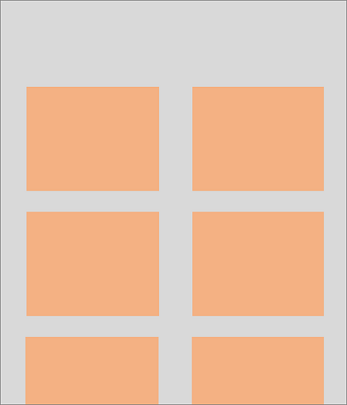
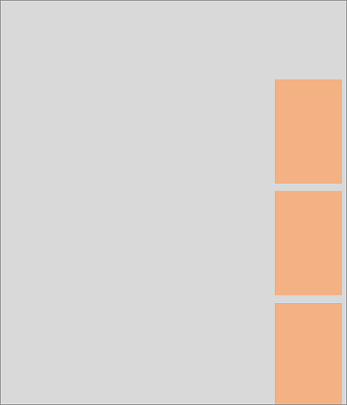
| [Illustration of a page displaying multiple FactBoxes in the FactBox pane.] | Most page types can display FactBoxes in the FactBox pane to show information related to the current record. |
| [Illustration of a document page displaying an embedded list.] | Pages of type Document model transactional data that typically consists of a header and detailed lines. These records come from different tables, so a part displays lines from a related table. |
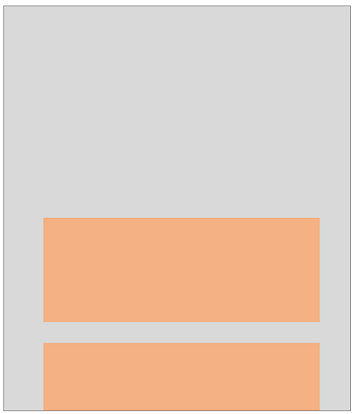
| [Illustration of a page displaying multiple parts above each other.] | Related lists can be displayed above each other. One list can display records related to the selected record in another list. |
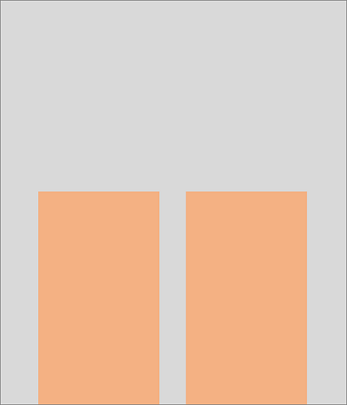
| [Illustration of a page displaying multiple parts side by side.] | When users need to compare records from two tables, parts can be displayed side by side. |

Different types of parts
Business Central offers different types of parts that display data in a specific way.
| Part type | Purpose | Hosting page types |
|---|---|---|
| ListPart pages | Display a list of records. | Role centers; FactBoxes on pages of type Card, Document, Worksheet, List, ListPlus; tabular step in a wizard; subpage on a Document page. |
| CardPart pages | Flexible canvas for page controls, such as fields, cue tiles, charts, images, or control add-ins. | Role centers; FactBoxes on pages of type Card, Document, Worksheet, List, ListPlus; step in a wizard. |
| Power BI report parts | Display Power BI reports using a CardPart page. | Role centers; FactBoxes; Card pages. |
| HeadlinePart pages | Display relevant insights from across the business. | Role centers only. |
Adding a part to a page
To add a part in Visual Studio Code, add a part control to the hosting page object and reference the page part object. The control defines properties such as the caption that accompanies the part. The page part object defines its functionality, while the hosting page defines how the part's container behaves.
For complete examples, see Adding a list part to a page and Adding a card part to a page.
Learn more about part control properties in Page properties.
Design considerations
Part size
The client determines a page-part container's size based on its location, surrounding content, and available display space. AL part properties don't let you specify its preferred, minimum, or maximum height or width. Control add-ins within a part have separate sizing properties.
Part actions
A part can define actions that operate on its fields or open another page. The hosting page and the part's location determine how the action menu is displayed.
- Role center parts and ordinary FactBoxes use condensed action menus.
- On desktop, top-level content parts can display an expanded action bar when the hosting page supports it. Supported hosts include card pages, document pages, and supported task dialogs. Parts inside FastTabs generally use condensed menus.
Collapsed or expanded parts
The area in which a part is embedded on a page determines whether the part can be collapsed.
- You can't collapse individual parts in the
FactBoxesorRoleCenterarea. This behavior differs from collapsing the entire FactBox pane. - You can collapse ordinary parts in the
Contentarea when the parts are hosted on a supported task dialog, card, or document page, provided they're not inside a FastTab.
Business Central determines whether parts are initially expanded or collapsed. For example, when a document page opens for the first time without saved user settings, the first two eligible parts or FastTabs are expanded and the others are collapsed. Users can change this state in the client. Developers can't specify the starting state.
Choosing the visibility of parts
Hide parts on the hosting page to provide an optimal starting experience. For example, hide a part that contains secondary content or information needed by only some users. To hide a part, set its Visible property to false on the hosting page.
Users can display hidden parts through personalization and role customization. You can also use an expression to control visibility, for example, based on whether an administrator has set up a feature. Learn more about dynamic visibility in Visible property.
Note
You can't use AL code on the hosting role center page to dynamically change a part's visibility, because custom logic on role center pages is ignored. Use static visibility settings and personalization instead.
Using page background tasks
Like other page types, a part page can use one or more page background tasks. However, a part page doesn't display data until all its page background tasks have completed. Learn more in Designing part pages for page background tasks.
Additional part restrictions
- Parts can either represent self-contained functionality, or can be contextual and exchange information with the hosting page.
- A part can't be hosted within another part. Business Central allows a maximum of one level of page nesting.
- The web client doesn't support parts inside repeater controls.
- Parts aren't intended to be displayed on their own without a hosting page.
Related information
AL development environment
Page types and layouts
FactBoxes
Headlines
ListPart pages
CardPart pages
Power BI report parts
Page extension object
Personalizing your workspace
Use Designer