The Business Central Web client includes a page inspection feature that lets you get details about a page. Page inspection provides insight into the page design, the different elements that form the page, and the source behind the data it displays. Page inspection helps you:
- Learn the data model behind a page.
- Discover pages and parts that can be reused in your application design.
- Troubleshoot data issues without having to do tasks like copying the production database, viewing the entire source table, or digging into SQL.
- Debug the application, complementing Designer.
Working with Page Inspection
You start page inspection from the Help & Support page. Choose the question mark in the top-right corner, choose Help & Support, and then choose Inspect pages and data. Or, you can just use the keyboard shortcut Ctrl+Alt+F1.
The Page inspection pane opens on the side. The following figure illustrates the Page Inspection pane on the Sales Order page.
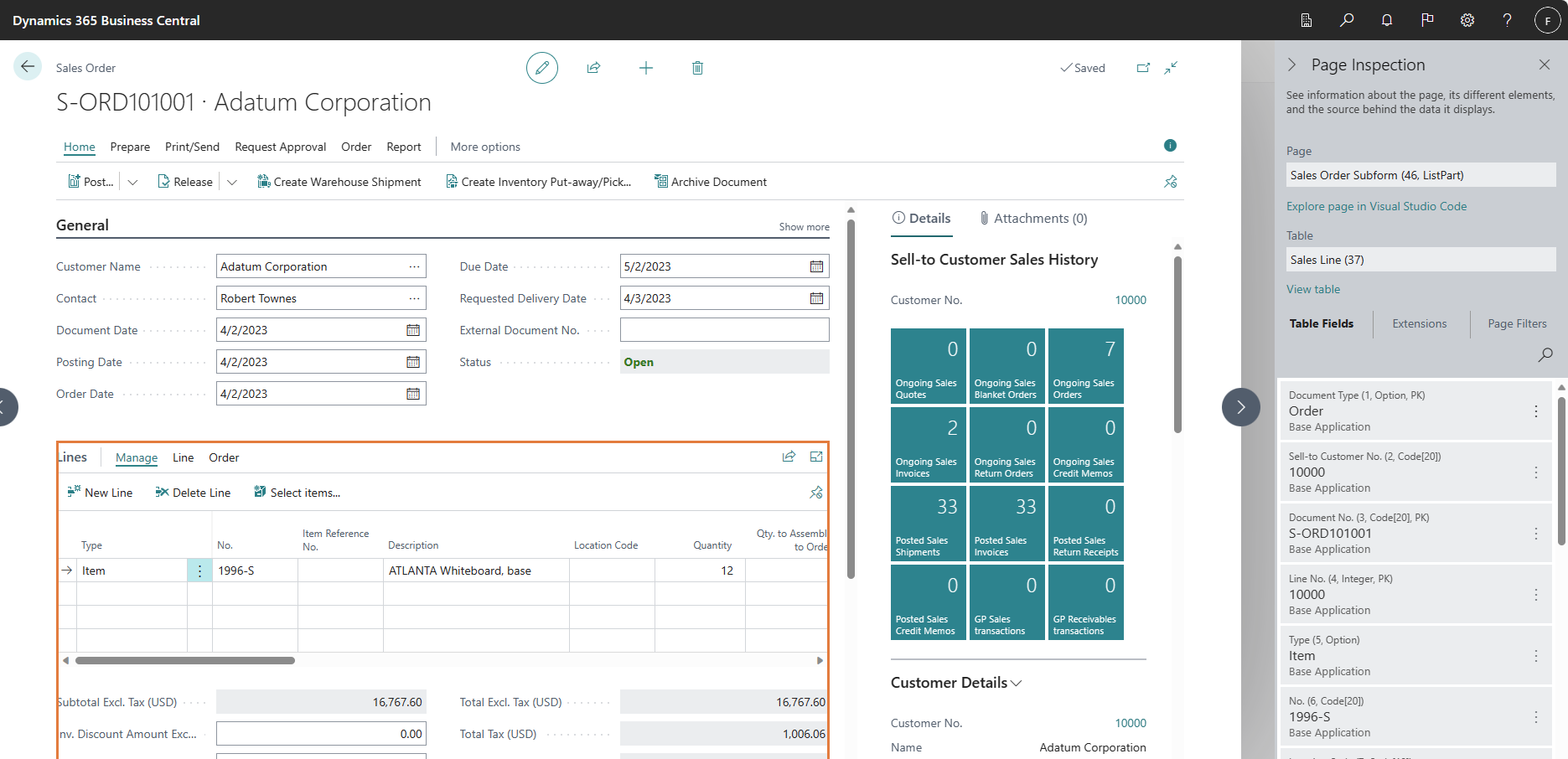
When the Page Inspection pane first opens, it shows information that pertains to the main page object.
Use the keyboard or pointing device to move focus to different elements on the page. When you select a FactBox or a part on the main page, a border will highlight the area. The Page Inspection pane then shows information about the selected element. For example, the previous figure shows information about the list part in the Sales Order page.
As you navigate to other pages in the application, the Page Inspection pane will automatically update with page information as you move along.
What Page Inspection Shows
The page inspection pane shows the information for the main page or page part, including:
- The page's source table (if any) and fields.
- Extensions that affect the page.
- Current filters applied to the page.
The following sections describe details about what is shown.
Note
If you don't see all details described below, you might not have the required permissions. Learn more in Controlling Access to Page Inspection Details.
Tip
To copy the values of a field or entity under one of the tabs to the clip board, select the field or entity and select Ctrl+C.
Page
The Page field shows information about the main page or a selected (highlighted) subpage in a part. The field shows the following information:
- The name, as specified by its Name property
- The ID as specified by the ID property.
- The type, as specified by the PageType property.
Elements shown with limited information
Role Center pages
If a page has the type Role Center, the Table field doesn't appear. Because the Role Center consists of several parts, there's no more information shown. To see more details, select the different parts that make up the Role Center.
Report request pages and previews
If you open a report request page or preview for inspection, the only information shown in the Page Inspection pane is the report's name and ID.
Tip
From the Business Central client, you can export report results as raw data to a Microsoft Excel file. The file contains all columns of the dataset, but without the layout applied. Use the file to help validate that the report returns the expected data, and to ensure that the report layout controls match the dataset value types. To export a report dataset to Excel, run the report and select the Send to > Microsoft Excel Document (data only) on the request page. For more information, see Working with Reports - Send to Excel.
System parts, such as Links or Notes, and parts containing charts.
Explore page in Visual Studio Code
With Business Central 2023 release wave 2, you can explore the code behind the page in Visual Studio Code to troubleshoot any issues. To do this, select the Explore in Visual Studio Code link, which opens the page in Visual Studio Code, where you can inspect the page object and its source table. Learn more in Troubleshoot in Visual Studio Code directly from the web client.
Table
If the main page or the selected page part has a source table, the Table field displays information about the source table. The source table is specified by the page's SourceTable property. The Table field shows the following information:
- The name, as specified by its Name property
- The ID as specified by the ID property.
If the page uses a query object as a data source, the table field shows the query name and ID instead.
View Table
If a page has a source table, the View table link is available. This link opens the table in a separate browser window, so you can see all records and fields in the table.
Note
To view a table, you must have read permission on the table and direct execute permission on the system object 1350 Run table. This is granted by a permission set on your user account. Learn more in Managing Users and Permissions.
Table Fields
The Table Fields tab displays information about all fields in the source table for the current record, including fields that don't appear on the page.
[Page Inspection Table Fields Tab.]
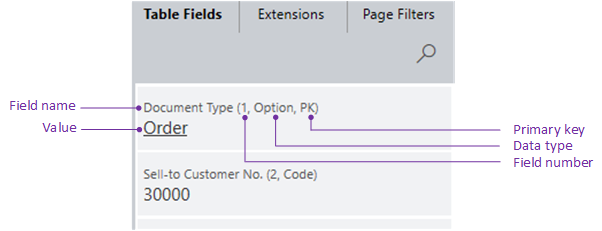
Each field is shown with the following information:
- Field name as specified by the Name property.
- Field number as specified by the Field No property.
- Data type as specified by the Data Type property.
- If the field is a primary key, it's indicated by PK. A primary is specified by the Key property.
- Value of the field.
- If the field is added by an extension, the name of the extension appears under the value.
- For Code and Text fields the length of the field is shown as follows:
Text[x]orCode[x], wherexis the length of the field.
Tip
To find where a field is used on a page, select the field in the Table Fields tab. If it's used on the page, it's highlighted by a green border.
What field information isn't shown
- Page fields that aren't bound to the source table by the SourceExp property.
- The value of fields that have a data type of blob, byte, media, or mediaset.
Extensions
APPLIES TO: Business Central 2026 release wave 2 and later
The Extensions tab displays installed extensions that add or extend the selected page or its source table.
The tab shows the ID, name, version, publisher, and type of each extension. Except for the type, these values are defined in the extension's app.json file. Page Inspection derives the type from the objects in the extension. Learn more in App.json.
The ID, which is sometimes referred to as AppID, is a 32-digit unique identifier, which is useful when identifying extensions and debugging issues.
Note
In Business Central 2021 release wave 1 (version 18) and earlier, the ID is the ID assigned to the extension package (.app file), not the extension itself.
Type
There are four different extension types:
- Adds page indicates that the extension adds the page object.
- Extends page indicates that the extension modifies the page, like adding a field, action, or code. In AL, these modifications are done by a page extension object.
- Adds table indicates that the extension adds the table object.
- Extends table indicates that the extension modifies the source table, like adding a field or code. In AL, these modifications are specified by a table extension object.
Analyze extension performance
Page Inspection doesn't show extension execution time or the number of event subscribers. To record and analyze a slow scenario in the web client, use the Performance Profiler. Developers can use the AL Profiler for detailed code-level analysis. To investigate long-running AL methods by using historical data, use Application Insights telemetry.
Page Filters
The Page Filters tab displays the current filters used on the current page. The tab shows filters set by code, set in list views, or defined by the user in the filter pane of the page.
[Page Inspection Page Filters.]

The following table describes the different filter types.
| Type | Description |
|---|---|
| UserFilters | Filter that is defined by the client user, by using the Filter pane (see Filtering), or defined in code by using filter methods like SetFilter or SetRange. |
| TableViewFilter | Filter that is defined on the page by the SourceTableView property |
| SubFormLinkFilters | Filter that is defined by the SubPageLink property on a part control that contains the subpage. |
| FormViewFilters | Filter that is defined by the RunPageView property of the action that opens the page. |
Related information
AL Development Environment
Page Extension Object
Actions Overview
Adding Pages and Reports to Search
Personalizing Your Workspace
Use Designer
Troubleshoot in Visual Studio Code directly from the web client