You can design your checks to conform with the standards set by the local authorities. The United States and Canadian versions include check reports that can print in English, French, or Spanish.
The North American reports support check/stub/stub, stub/check/stub, stub/stub/check, and three-checks-per-page formats.
Select the check report
- Select Search (Alt+Q) in the upper-right corner, enter Report Selection - Bank Account, and then choose the related link.
- On the Report Selection - Bank Account page, in the Usage field, select Check.
- Select one of the following report IDs. Reports in the 10000 range are available in the North American versions.
| Report ID | Report name | Description |
|---|---|---|
| 1401 | Check | This report is the default report. |
| 10401 | Check (Stub/Stub/Check) | This report is designed to print checks in a stub/stub/check format. |
| 10411 | Check (Stub/Check/Stub) | This report is designed to print checks in a stub/check/stub format. |
| 10412 | Check (Check/Stub/Stub) | This report is designed to print checks in a check/stub/stub format. |
| 10413 | Three Checks per Page | This report is designed to print three checks on each page. |
After you set up check layouts, you can print checks from the Payment Journal page. Learn more in Work with Checks.
To change one of these default check layouts, create a user-defined layout. Learn more in Get started creating report layouts.
Use MICR and security fonts
The online version of Business Central contains preinstalled fonts on the servers that can be used when defining check layouts. The following outlines which fonts are available and have links to detailed information by the 3rd-party suppliers of the fonts.
Important
MICR and check security fonts in Business Central are licensed in a font package from IDAutomation.com, Inc. These products may only be used as part of and in connection with Business Central.
In update 15.3 and later, Magnetic Ink Character Recognition (MICR) fonts are installed and available to use. Both the E-13B and the CMC-7 standards are supported. Special security fonts are also available to generate text, names, amounts, and the currency symbols such as Dollar, Euro, Pound, and Yen, which are hard to tamper with once a check is printed.
Note
- For security and legal reasons, you cannot upload custom fonts to the Business Central online environment.
- With Business Central on-premises, the MICR and check security fonts from IDAutomation.com aren't available by default. You must purchase them from IDAutomation.com or another supplier. Once you have the fonts, install them on the computer that runs the Business Central Server. As a minimum, install the fonts for the user that runs the Business Central Server instance, that is, the service account. To install the fonts, follow the instructions from the font supplier or refer to Add a Font.
MICR E-13B specifications
The following illustration summarizes specifications for the MICR E-13B fonts that can be useful when calibrating fonts to be on check layouts with specific MICR printers.
[Diagram showing MICR E-13B character dimensions for calibrating check layouts.]
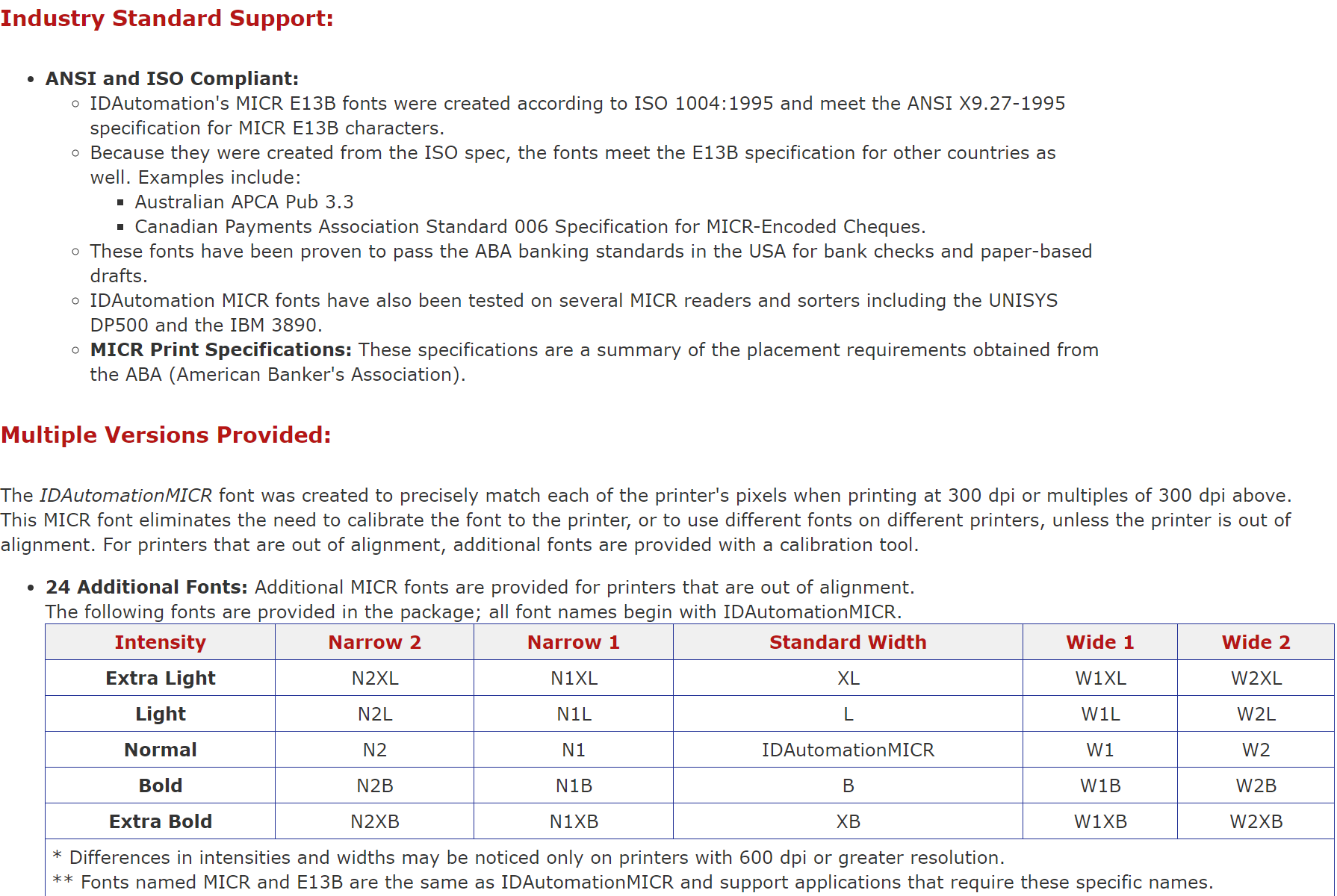
MICR E-13B delimiter characters
[Diagram showing the delimiter characters used with MICR E-13B fonts.]

Learn more in the supplier's MICR E-13B font specifications.
MICR CMC-7 specifications
The following CMC-7 fonts are available in Business Central online:
- IDAutomationCMC7
- IDAutomationCMC7n10
- IDAutomationCMC7n25
- IDAutomationCMC7n40
The following illustration summarizes specifications for the MICR CMC-7 fonts that can be useful when calibrating fonts to be on check layouts with specific MICR printers.
[Diagram showing MICR CMC-7 character dimensions for calibrating check layouts.]
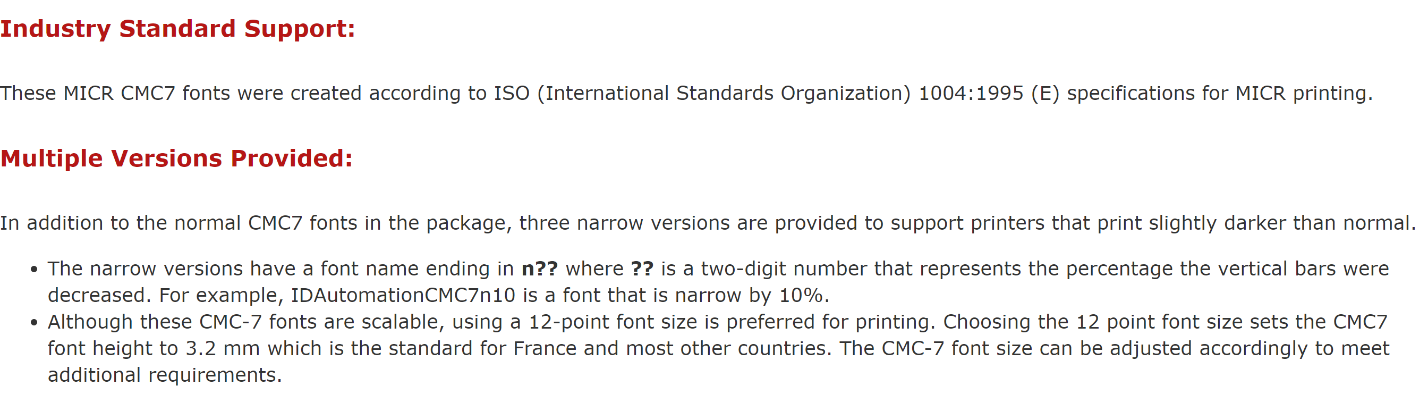
MICR CMC-7 delimiter characters
[Diagram showing the delimiter characters used with MICR CMC-7 fonts.]

Learn more in the supplier's MICR CMC-7 font specifications.
Secure font specifications
The following illustration summarizes specifications for check security fonts that can be useful when calibrating fonts to be on check layouts with specific MICR printers.
[Diagram showing check security font samples and dimensions for check layouts.]
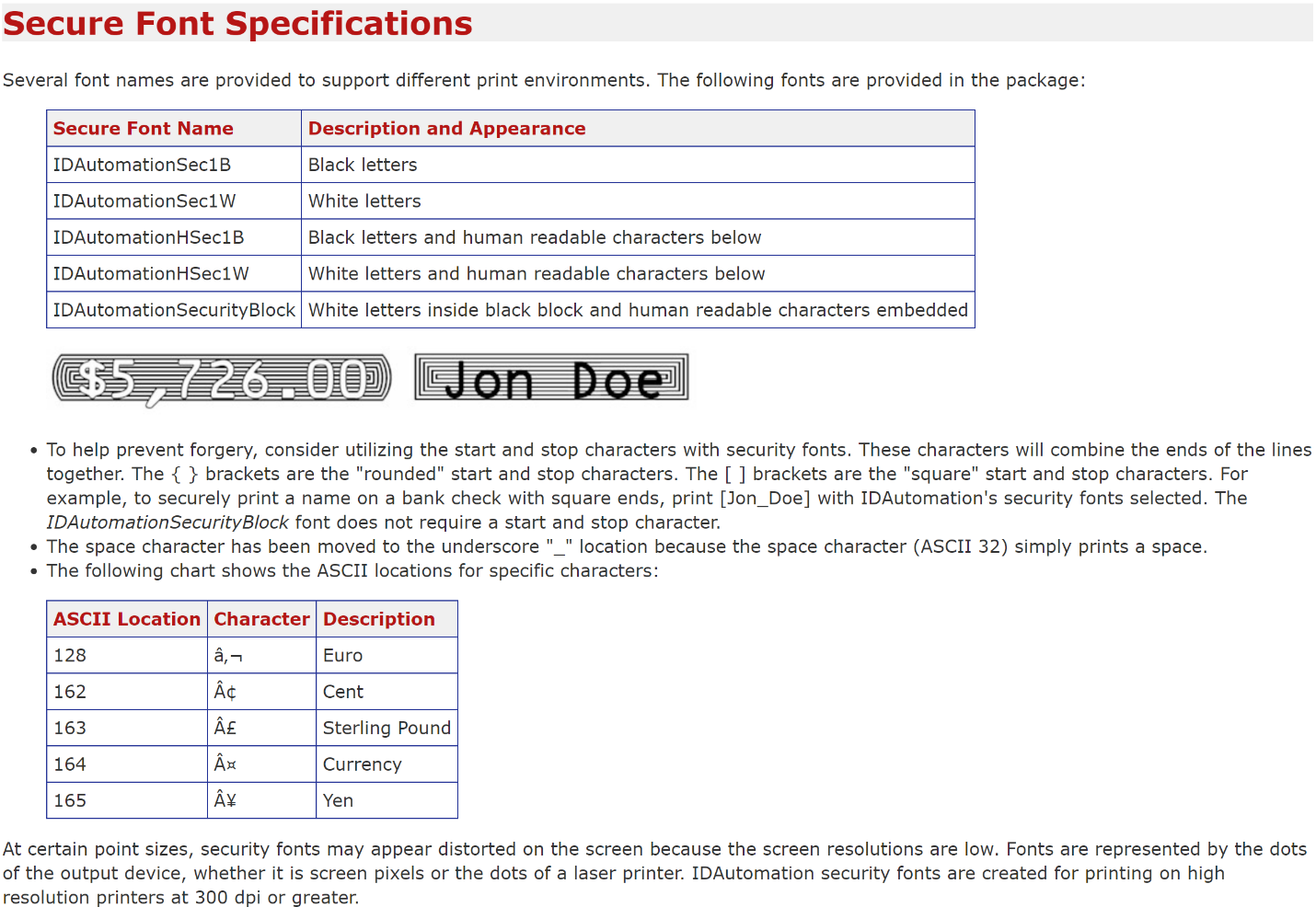
Learn more in the supplier's check security font specifications.
Fonts for other purposes are also available in Business Central. Learn more in Available fonts.
Related information
Get started creating report layouts
Fonts in Business Central
Managing payables
Reconciling bank accounts
Completing period-end processes
Work with Business Central
General business functionality