If you have a Windows (PC) or macOS computer, you can install a Business Central app on your desktop. The app works with Business Central online and on-premises.
Why use the app?
The Business Central app resembles the web client, but it provides a few benefits like:
On Windows, the app is available from the Start menu, and you can pin it to the taskbar.
The app opens in its own window, independent of any browser windows. This feature makes it easier to find when running a large number many apps or browser tabs.
If there's more than one Business Central environment (online only), you can install the app separately for each environment.
When you open the app for specific environment, the environment name is included in the window title. When working across multiple Business Central environments, each app window is displayed separately. The name makes it easier for you to see which window is associated with each environment.
Install the app for Business Central online
There are two ways to install the app for Business Central online. You can install it directly from the browser on Windows or macOS, or from Microsoft Store on Windows. Whichever approach you use, it's the same app. The difference is that installing from the browser lets you install the app for each environment when there's more than one.
From Microsoft Store
- Go to Microsoft Store.
- Follow the Microsoft Store instructions to install and open the app, then sign in to Business Central.
The next time you want to open the app, look for it in Start menu.
From the browser
Open the Business Central web client in either Microsoft Edge or Google Chrome.
If the page for selecting the environment appears, you can do one of two things:
- Select the environment and go to the next step to install the app. In this case, the installed app will open the environment you select.
- Don't select the environment, and just go to next step to install the app. In this case, the installed app will open the environment selection page, instead of a specific environment.
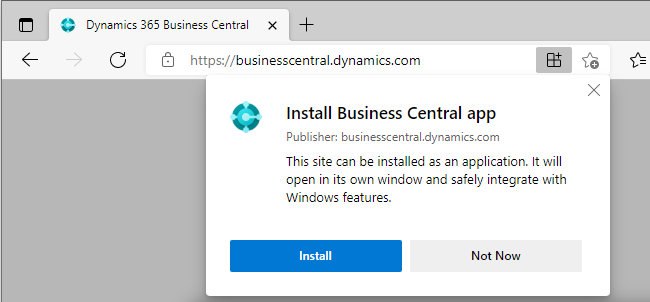
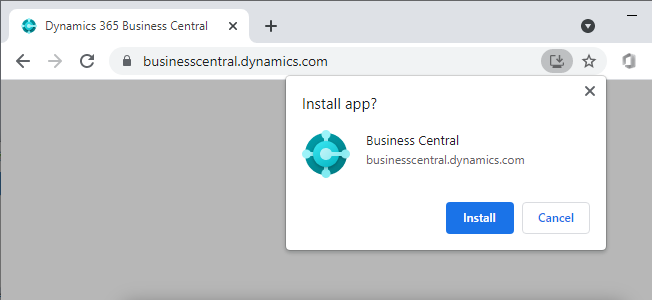
To install the app, select App available in Microsoft Edge, then Install. In Google Chrome, select Install in the address bar, then follow the on-screen instructions.
Tip
For other installation options, see Use Progressive Web Apps in Microsoft Edge or Use web apps in Google Chrome.
On Windows, the installed app appears in the Start menu. If you've selected a specific environment for the app, the environment name is added to the app name in the Start menu.
Install the app for Business Central on-premises
Installing the desktop app when you're using Business Central on-premises is done directly from the browser as described above. Open the web client in your browser and use the install icon in the address bar. The web client must use HTTPS for browser installation to be offered.
The difference is when you have multiple tenants. Unlike Business Central online, where you can install the app for different environments, you can only install the app for one tenant. So before you install the app when you have multiple tenants, be sure to switch to the correct tenant. Once installed, when you open the app, it will directly open the tenant.
Related information
Mobile Apps FAQ
Getting Ready for Doing Business
Work with Business Central