The Payables Agent helps you process vendor invoices and credit notes from end to end. Processing these documents often creates bottlenecks and relies on accounting knowledge and mapping data and business rules to register purchases correctly.
The core goal for the Payables Agent is simple: get accounting skills and help register invoices correctly, ideally removing bottlenecks in accounts payable so finance support doesn't slow company growth. The agent needs almost no setup—just configuration and activation.
The Payables Agent monitors mailboxes for incoming vendor invoices and credit notes, uses AI to analyze their content, and shows purchase document drafts to agent supervisors for review. Ideally, users make few or no corrections before finalizing drafts. Finalizing creates an unposted purchase invoice or purchase credit memo, depending on the draft's Document Type. Review the resulting document before any required Business Central approval workflow and posting. The agent doesn't post either document type.
Note
This Copilot feature is validated and supported in English only. While it can be used in other languages, it might not function as intended. Language quality might vary based on the user's interaction or system settings, which might impact accuracy and the user experience. Learn more in Copilot country/region availability and supported languages.
Payables Agent process flow
The following figure shows the invoice process handled by the Payables Agent. Credit notes follow the same draft and review process, but skip purchase order matching and create purchase credit memos instead. The actual flow can vary depending on factors like the clarity of extracted document details, existing purchase history, and blocking issues.
[Shows the Payables Agent flow]
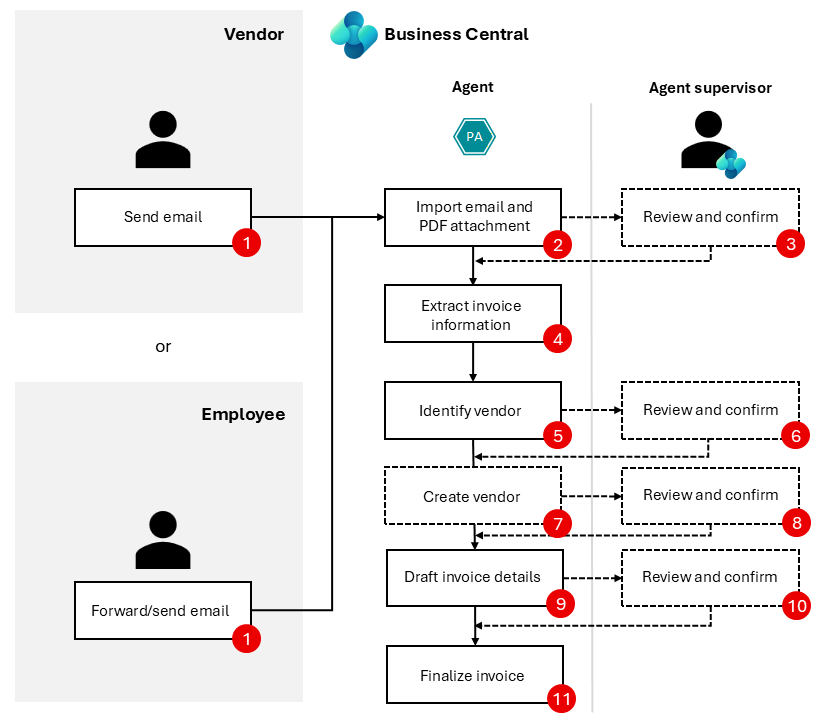
The dashed steps in the image can be optional depending on configuration.
- Vendor or employee: Vendor sends an email to a mailbox monitored by the agent. Alternatively, an employee forwards a vendor invoice or credit note to the mailbox.
- Payables Agent: Picks up unread email in the monitored mailbox. It then imports the email and creates an entry in Inbound E-Documents for every PDF attachment, if any exists.
- Agent supervisor: Reviews the email and PDF, if any was attached.
- Payables Agent: Extracts document information from the PDF. Business Central determines whether to prepare a purchase invoice or purchase credit memo draft from the extracted document type.
- Payables Agent: Identifies a vendor in Business Central based on the extracted document information.
- Agent supervisor: Can assist the agent with identifying the vendor if the agent can't confidently identify the right vendor. The agent supervisor can instruct the agent to create the vendor if they prefer to let the agent prefill vendor information based on OCR extracted vendor details.
- Payables Agent: The agent attempts to create the vendor and uses the available OCR extracted vendor details to fill out as many fields on the vendor card as possible.
- Agent Supervisor: Is asked to review the newly created vendor, which is blocked for processing until unblocked by a relevant stakeholder.
- Payables Agent: Uses AI to suggest purchase document details based on the extracted information.
- Payables Agent and Business Central: For invoices, the agent proposes purchase order lines. Business Central validates compatible order lines, allocates invoice quantities, and evaluates order-match warnings. For credit memos, Business Central looks for the invoice referenced on the credit note, and the agent reads the application details and warnings.
- Agent supervisor: Reviews, confirms, or changes the suggested details in the purchase document draft before finalization.
- Payables Agent: Finalizes the draft into an unposted purchase invoice or purchase credit memo. Users can review the document in Purchase Invoices or Purchase Credit Memos before posting.
Email monitoring
The agent uses an internal email dispatcher running as a background task to continuously monitor a designated mailbox for incoming vendor invoices and credit notes as PDF documents. The dispatcher triggers the agent to perform tasks and then imports the PDF document into Inbound E-Documents.
Important
The agent only processes emails that have PDF attachments. It doesn't process emails without PDF attachments, and the emails appear as agent tasks that require manual attention.
If an email contains more than 10 attachments, the agent skips that email entirely. Keep the number of attachments per email to 10 or fewer to ensure the agent processes them.
Each PDF document found in an email becomes an entry in Inbound E-Documents. Thus, if there are multiple PDF attachments in the same email (up to a maximum of 10), an entry in Inbound E-Documents is created for each of them. A distinct agent task processes each entry.
Use a shared mailbox to curate invoices and minimize noise
The agent processes any email sent to the monitored mailbox. We recommend you use a shared mailbox that you keep as an internal-only mailbox and don't expose this mailbox to your vendors. The choice is yours. However, by not exposing invoices to vendors, your employees become the first to review and identify potential fraud, while also minimizing unnecessary information for the agent to handle. We recommend you set up a shared mailbox in Microsoft 365, add your accounts payable team members to that mailbox, and use that as the mailbox monitored by the Payables Agent. Learn more in Create a shared mailbox.
Note
Use a mailbox that's designated to receive vendor invoices and credit notes. If other agents, like the Sales Order Agent, use the same mailbox, it can cause conflicts with ownership of incoming emails.
[!CAUTION] The Payables Agent processes only emails that contain PDF attachments. Ensure that the agent has full ownership of the mailbox, and that users can't accidentally read or remove emails:
- The monitored mailbox should only be attended from within Business Central.
- Users shouldn't access the monitored mailbox from Outlook.
- Use a shared mailbox, if possible.
- Ensure emails contain 10 or fewer attachments. The agent skips emails that have more than 10 attachments.
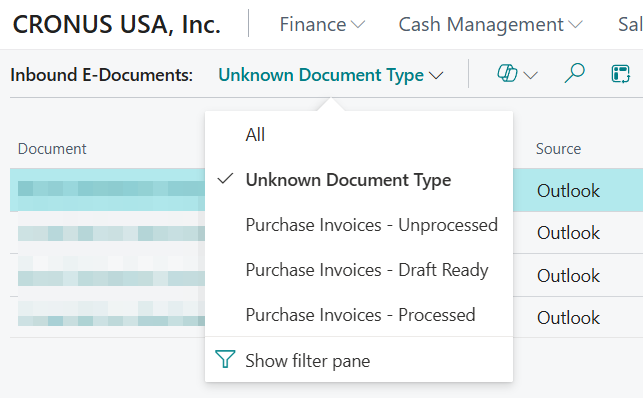
PDF files that aren't recognized as supported purchase documents are marked as unknown document type. You can filter these documents by choosing the Unknown Document Type view on the Inbound E-Documents page, and then remove them. You can also remove unsupported files received in this mailbox this way.
[Shows the Unknown Document Type view on the Inbound E-Documents page]
Extract invoice and credit note data
Business Central extracts data from the PDF and stores the result in the same e-document record. The extracted document type determines whether the draft becomes a purchase invoice or purchase credit memo. A negative amount alone doesn't make a document a credit memo. The Document Type field on the draft is read-only.
PDF analysis can recognize credit notes and cancellation invoices that reverse an earlier invoice, even when they show positive amounts. Review extracted dates, quantities, amounts, and complete invoice references against the PDF.
The agent helps categorize imported PDF documents when it's uncertain whether the PDF is a supported purchase document. You can identify these documents in Inbound E-Documents by using Unknown Document Type.
Prepare purchase document drafts
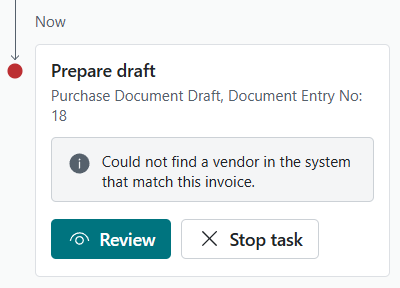
When the agent determines that a PDF document is a valid vendor invoice or credit note, it identifies the vendor to create the purchase document draft. If the agent can't confidently identify the correct vendor, it might need help from an agent supervisor. If the agent couldn't identify the vendor, the agent supervisor can instruct the agent to create the vendor by using the Give instructions to the agent field in the agent Tasks tab in the Copilot pane.
The agent will stop when it cannot identify the vendor:
[Vendor is not identified by the agent]
Agent supervisors can instruct the agent to go create the vendor using the OCR data as input:
[Agent is instructed to create the vendor]
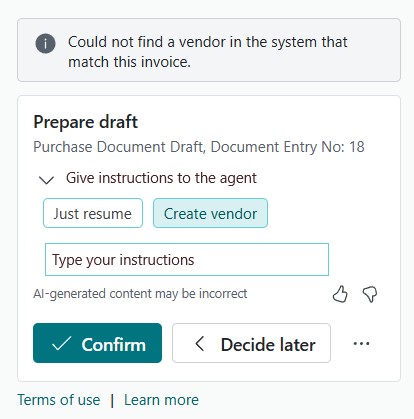
You can provide more instructions by selecting one of the suggested actions or typing your own instructions in the Type your instructions box. After you select one of these options, select Confirm. In the above example, the Create vendor instruction is selected. Learn more in Give instructions to the agent.
When the agent has created the vendor, it will ask the agent supervisor to review the newly created vendor:
[Agent supervisor is asked to review the vendor]
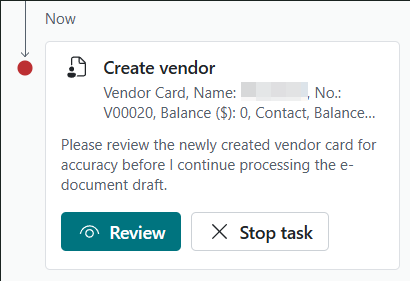
When the agent supervisor opens the vendor card, they can easily identify the fields set by the agent and fill out the rest of the fields as needed. If you want the agent to work with the current invoice right away, unblock the vendor by using the Blocked field on the vendor card.
Note
When the agent creates a new vendor, the Blocked field on the vendor card is set to All. This behavior ensures that proper vendor approval processing can take place. Usually, vendors and their bank accounts are approved by having communication with the vendor and doing human callbacks to the vendor's finance department. In many places, this action is a requirement for a successful audit. Thus, leaving the newly created vendor in a blocked state ensures no invoicing processing can happen until the vendor is unblocked. The agent itself doesn't provide any capabilities for vendor approvals.
After you select Confirm in the agent Tasks tab in the Copilot pane, the agent tries again to identify the vendor, which should now succeed because it was just created, given that you unblocked the vendor.
After the agent identifies the vendor, it starts line-level processing of the document details. The agent uses different methods to draft the details. For example, it might use AI, vendor invoice history, mapping text to G/L accounts, and item references. The agent records all draft details for the vendor invoice or credit note in a Purchase document draft related to the Inbound E-Document. You can access this draft from the Inbound E-Document when not interacting with the agent. It's also linked in the agent Tasks tab of the Copilot pane when an agent supervisor is involved.
When an invoice references purchase orders, the agent can propose order-line matches after it identifies the vendor and invoice lines. Business Central checks whether the order lines are compatible and allocates invoice quantities to the selected lines. Lines that aren't matched continue through the existing classification and review process.
Review purchase order matches before finalization
On the Purchase document draft page, review Order line match and Warnings for each line. The warnings are Business Central quantity, receipt, unit-of-measure, and price validations. They aren't AI confidence indicators.
Use Match to order lines to correct a proposed match or match an unmatched line. You can select one or more compatible order lines. Payables Agent doesn't necessarily select multiple lines autonomously for one invoice line. Review unmatched lines and classify them manually when needed.
Confirming the draft review lets Payables Agent continue and finalize the draft as an unposted purchase invoice. This review confirmation isn't a Business Central approval workflow, and the agent doesn't post the invoice. Review the resulting purchase invoice and its receipt allocations before posting. Learn more in Match purchase invoice drafts to purchase orders.
Review credit notes before finalization
When Business Central recognizes a vendor credit note, the draft's Document Type is Purchase Credit Memo. The agent skips purchase order matching and requests a review titled Review credit memo. The review request identifies the selected posted invoice, if any, and includes the application warnings.
- Review the vendor, document details, lines, and amounts against the credit note.
- Check the invoice reference in Applies-to Vendor Inv. No. and the selected posted invoice in Applies-to Doc. No.. You can correct the reference, select another eligible open invoice, or clear the selection. The agent doesn't change these fields.
- Review the warnings below Applies-to Doc. No. before confirming how to continue.
- Confirm the review to let the agent finalize the draft into an unposted purchase credit memo.
- Review the resulting purchase credit memo and its application before posting.
If no invoice is selected, the credit memo remains unapplied when posted, even if the vendor uses Apply to Oldest. If the selected invoice is no longer eligible at finalization, the agent requests help. Correct or clear the selection on the draft, then confirm that the agent can try again.
For field explanations, matching rules, and warning details, see Process incoming credit notes. The same application checks apply with or without the agent.
Finalizing the purchase document draft
The Purchase document draft is where the agent's draft details are shown to the user and where the agent explains why it made certain field value suggestions. The draft helps users learn about the agent's reasoning and decide whether to adjust the draft details before finalizing the draft.
On each section you'll see hints about how many fields to review:
[Agent shows hints about how many fields to review]

Each field where a review is required will have a tip that describes the agent's reasoning behind setting the field's value:
[Agent shows reasoning behind setting the field value]
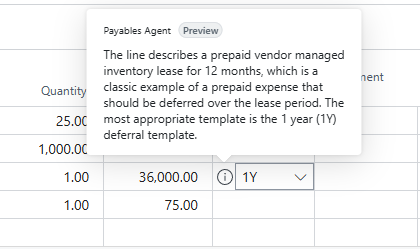
These tips help you understand the agent's suggestions before finalization. Finalizing a purchase draft creates an unposted purchase invoice or purchase credit memo, according to Document Type. After finalization, the draft is linked to the purchase document and is no longer editable. The draft remains as long as the purchase document exists.
Page notifications might be hidden while the data review bar appears. Learn more in Show page notifications during review.
Activation and configuration
The agent is available in Business Central and is ready for you to use. To activate it, see Payables Agent Setup to learn how to set up the Payables Agent for the agent supervisors you want to work with the agent.
Billing for use
The Payables Agent uses Copilot Credits for AI interactions, which can incur charges based on interaction complexity. Before you use the agent, set up a billing model for your Business Central environment. Learn more in Manage consumption-based billing.
General agent operations
The Payables Agent runs autonomously in the background, using AI to do its tasks while keeping users informed about key steps and involving them when needed. For example, the agent requests review of invoice and credit memo drafts before finalization.
Conceptually, the agent interacts with Business Central features like a Business Central user. The agent gets general instructions in natural language that outline how to handle vendor invoices and credit notes. It uses UI metadata, like captions, tooltips, and other properties, along with data on Business Central pages and its own instructions, to decide each step needed to finish the task. Starting from the designated Role Center, the agent goes through pages, selects UI actions, and enters data as a user does. This approach lets the agent stay flexible and adaptable because its interaction surface and steps aren't hardcoded. Instead, AI decides them based on the context of each step.
This flexibility lets the agent find and interact with relevant custom fields and actions. It can also try to automatically fix validation errors by processing displayed error messages and adjusting the input.
Customer and Business Central user involvement
Agent supervisors can check the agent's steps, imported PDF invoices and credit notes, and the drafted purchase document details. They can see the data the agent enters compared to data from Business Central's business logic and extracted document data, and change the purchase document draft as needed.
The agent involves designated Business Central users, called agent supervisors or overseers, if it isn't sure how to register the purchase document. For example, if the vendor can't be identified with confidence.
Permissions and profiles
The agent works within the permissions and profile (role) the admin assigns. Learn more in Manage agent permissions and user access.
Limitations
The following limitations apply to the Payables Agent:
Feature limitations
The Payables Agent currently doesn't support the following features:
- Approval flows
- Anomaly detection
Document and usage constraints
The following constraints apply to document processing and daily usage:
- The agent only processes emails with PDF attachments. Emails without PDF attachments are not processed for invoice creation.
- The agent skips emails with more than 10 attachments. Each email should contain 10 or fewer attachments.
- The agent doesn't process PDFs with more than 10 pages.
- The agent doesn't process PDFs larger than 5 MB.
- The agent doesn't process more than 100 emails per day.
- The agent doesn't process more than 500 invoices per day.