Microsoft Excel report layouts are based on Excel workbooks (.xlsx files). With them, you can create reports that include familiar Excel features for summarizing, analyzing, and presenting data such as formulas, PivotTables, and PivotCharts.
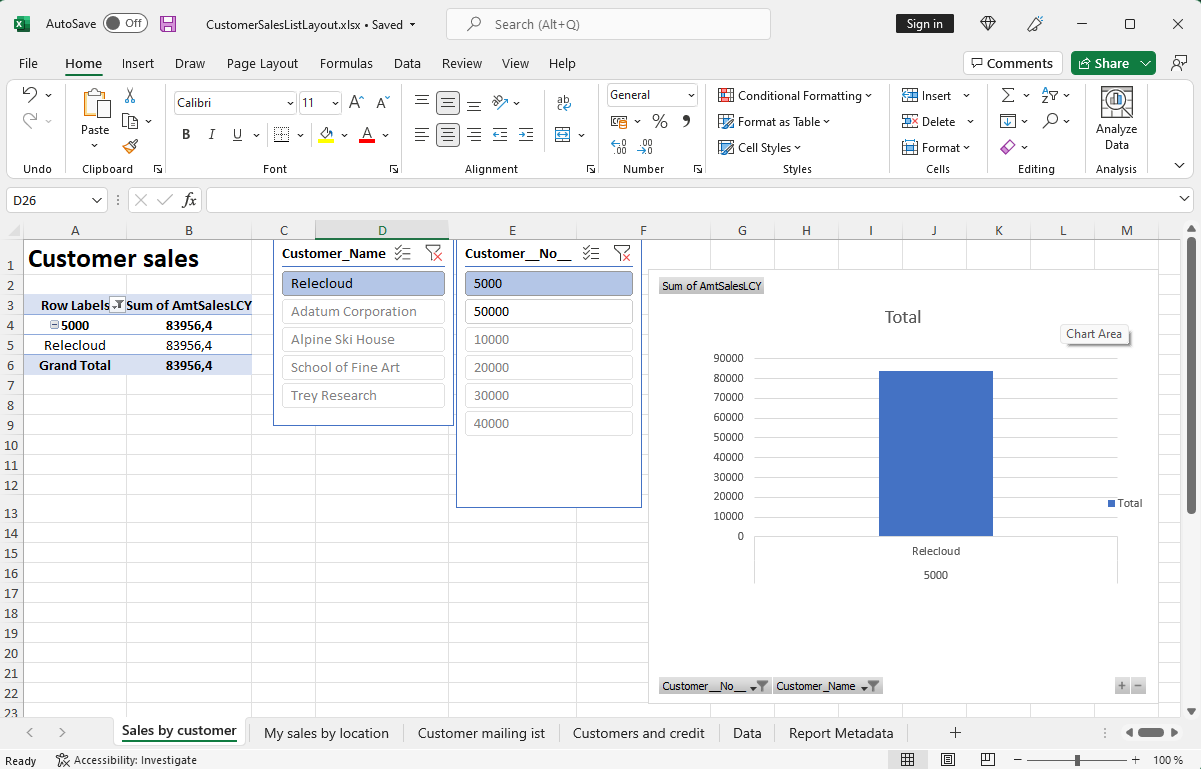
This article explains important information you need to know to get started with Excel layouts.
Why use Excel layouts?
Benefits of using Excel layouts:
- You can create your own report layouts with Excel, either from scratch or based on an existing layout.
- You can include multiple worksheets, interactive elements, visualizations, pivot tables, and slicers.
- You can view raw data from the report dataset to help understand how the report works and where the data in visuals comes from.
- You can use built-in Microsoft Office features for post-processing on rendered reports, including:
- You can use installed add-ins and app integrations, such as Power Automate flows and OneDrive.
Tip
With OneDrive integration set up, when you run a report with an Excel layout, the Excel workbook file is copied to OneDrive and then opened in Excel online. For more information, go to Save Excel workbooks and report files in OneDrive
Get started with Excel layouts
There are two tasks involved in setting up an Excel layout for a report:
- Create the new Excel layout file.
- Add the new layout to the report.
Task 1: Create the Excel layout file
There are several ways to create an Excel layout for your report:
- From any report.
- From an existing Excel report layout.
- From Visual Studio Code.
From any report
Follow these steps to create an Excel layout from any report, regardless of the current layout type. The exported workbook contains the report dataset. Its data sheet structure depends on whether the report uses a single data sheet or multiple data sheets.
Select Search (Alt+Q) in the upper-right corner, enter Report Layouts, and then choose the related link. The Report Layouts page appears and lists all the layouts currently available for all reports.
On the Report Layouts page, choose any layout for the report, then select the Run Report action.
On the report's request page, select Send to, then Microsoft Excel Document (data only), and then OK.
This step downloads an Excel workbook that contains the report dataset.
Open the downloaded file in Excel, make your changes, and then save the file.
From an existing Excel report layout
If there's already an Excel layout for a report, you can use the existing layout as a starting point. There are two approaches to getting a copy of the layout. You can either export the existing layout from the Report Layouts page or download the layout from the report's request page. Both ways download an Excel layout file that includes all the sheets of the existing file. The difference is when you download it from the request page, the layout includes actual data. The data isn't required, but it helps when you design the layout.
Approach 1: Export the layout from the Report Layouts page
- Select Search (Alt+Q) in the upper-right corner, enter Report Layouts, and then choose the related link. The Report Layouts page appears and lists all the layouts currently available for all reports.
- Select the Excel layout from the list, and then select the Export Layout action.
- Open the file in Excel, make your changes, and then save the file.
Approach 2: Download the layout from the report's request page
- Select Search (Alt+Q) in the upper-right corner, enter Report Layouts, and then choose the related link. The Report Layouts page appears and lists all the layouts currently available for all reports.
- On the Report Layouts page, choose the Excel layout that you want to use, and then select the Run Report action.
- On the report's request page, select Download.
- Open the file in Excel, make your changes, and then save the file.
From Visual Studio Code
Using Visual Studio Code is the most advanced way to create an Excel report layout. It requires knowledge of AL code and is intended for programmers. In this approach, the Excel layouts are part of an extension package you install. Learn more at Creating an Excel layout report in the Developer and IT Pro help.
Task 2: Add the Excel layout to the report
When you have the Excel layout file, the next task is to add it as a new layout for the report.
Select Search (Alt+Q) in the upper-right corner, enter Report Layouts, and then choose the related link. The Report Layouts page appears and lists all the layouts currently available for all reports.
Select New.
In Report ID, enter the ID of the report that the layout belongs to.
In the Layout Name field, enter a name.
In the Format Options field, select Excel.
Leave Create a Blank Layout from the report object turned off to import your existing workbook. Set Available in All Companies to control whether the layout is available in all companies or only the current company. Set Create Multiple Data Sheets to match the layout's data sheet configuration.
Select OK, and then do one of the following steps to upload the layout file for the report:
- Drag the file from File Explorer on your device to the dialog box.
- Select the click here to browse link, find the file, and then select Open.
The selected file is uploaded to the layout, and the Report Layouts page opens.
To review the report in the new layout, select the layout from the list, and then select Run Report.
Note
In version 29, a new or replaced user-defined layout has the Draft status. After testing the layout, select Layout > Layout Status > Set as Approved to make it available for selection on report request pages.
Understand Excel layout data sheets
There are a few things you need to know or consider when you create or change Excel layouts. A layout can use a single data sheet or multiple data sheets. This configuration defines how the business data from Business Central is organized for the calculations and visualizations on other sheets.
For a single-data-sheet layout, the Data sheet and Data table link the layout to the report dataset. For a multiple-data-sheet layout, preserve the data sheets, tables, and column names generated for the report's data items. Don't combine them into a single Data table.
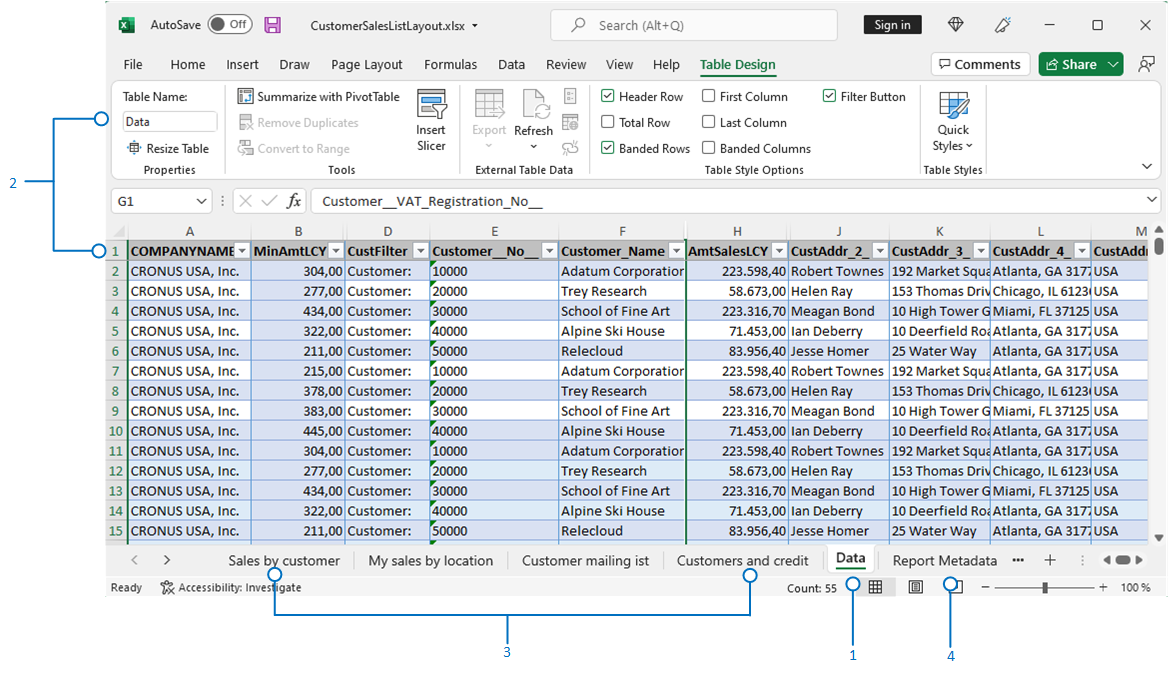
For the layout to work, there are some requirements to the structure of the Excel workbook that must be met. The following diagram and table outline the elements and requirements of a single-data-sheet layout.
[The different elements of an Excel layout.]
| No. | Element | Description | Mandatory |
|---|---|---|---|
| 1 | Data sheet | <ul><li>Must have the name Data.</li><li>Can only include one table, which must be named Data.</li></ul> | Yes |
| 2 | Data table | <ul><li>Must have the name Data.</li><li>Must have at least one column.</li><li>Can only include columns that are in the report dataset.</li><li>Must start in the first cell A1 of the Data sheet.</li></ul> | Yes |
| 3 | Presentation sheets | <ul><li>Used to present data.</li><li>Data comes from the Data sheet. </li></ul> | |
| 4 | Report Metadata sheet | <ul><li>Automatically included if the layout was created by exporting another Excel report.</li><li>Contains general information about the report.</li><li>Can be deleted.</li></ul> |
In summary when working with the Data sheet:
- You can delete or hide columns.
- You can place the sheets in any order, with the Data sheet first or last.
- You shouldn't rename the Data sheet, Data table, or any of the columns.
- You shouldn't add columns unless they already exist in the report dataset.
Related information
Creating an Excel layout report (developer documentation)
Report and document layouts overview
Set the layout used by a report
Import and export a custom report layout (Legacy)
Analyzing report data with Excel and XML
Run and print reports in Business Central
Working with Business Central