APPLIES TO: Business Central 2020 release wave 2 and later
This article explains how to develop extensions to send custom telemetry trace events to Azure Application Insights for viewing and analyzing.
You can add AL code in extensions to emit messages about activities or operations that users do within the application. At runtime, the messages can be picked up by an Azure Application Insights resource, which you set up beforehand. In Azure Application Insights, the custom telemetry events are stored in the traces table.
Tip
Consider using the Feature usage module from the System Application for logging events from your extension instead of using raw Session.LogMessage calls as described in this article. Learn more in Using Feature telemetry.
The scope for extension telemetry
Telemetry for Business Central can be defined in two places.
In the app.json file of the extension.
Learn more in Set up telemetry in an extension.
In the Business Central environment.
Learn more in Enabling Telemetry on Environments.
When you create a custom telemetry trace signal, you can specify the scope of the event. The telemetry scope determines if the event is only sent to the Azure Application Insights resource specified in the extension's app.json or if the event is also sent to the Azure Application Insights resource of the environment where the extension is installed.
[Shows how the scope property works in Business Central app telemetry]
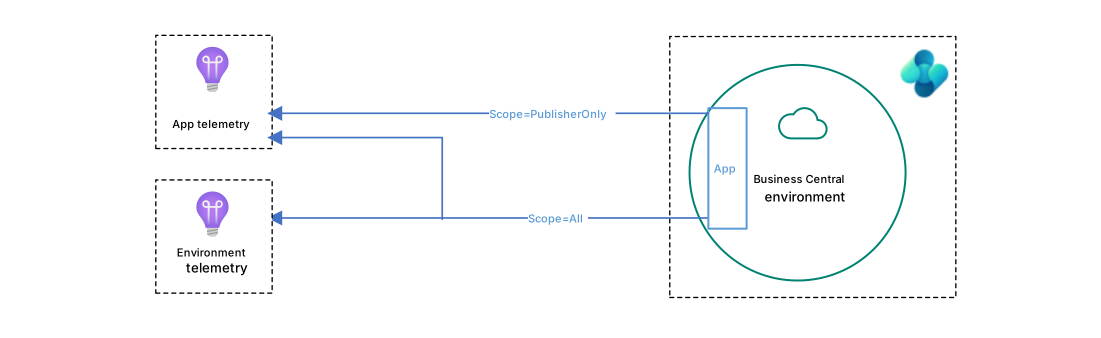
Note
Having Azure Application Insights resources configured in your app.json is not required to define custom telemetry events in AL code.
Create a custom telemetry event
To create a custom telemetry event, use the LogMessage method in AL code where you want to trigger the signal. The LogMessage method defines the information that is sent to Azure Application Insights for a specific operation or activity.
There are two variations of the LogMessage method. The difference is that one method uses a dictionary object to define custom dimensions for the trace signal. The other method includes two overloads so you don't have to construct a dictionary. You can use these methods in any object, trigger, or method.
The methods have the following signatures:
Using a dictionary
The LogMessage method for using a dictionary for dimensions has the following signature:
Session.LogMessage(EventId: Text, Message: Text, Verbosity: Verbosity, DataClassification: DataClassification, TelemetryScope: TelemetryScope, CustomDimensions: Dictionary of [Text, Text])Using dimension overloads
The LogMessage method for using dimension overloads has the following signature:
Session.LogMessage(EventId: Text, Message: Text, Verbosity: Verbosity, DataClassification: DataClassification, TelemetryScope: TelemetryScope, Dimension1: Text, Value1: Text [, Dimension2: Text] [, Value2: Text])Setting the parameters
Use the parameters to build the dimensions, or columns, that show for the trace in Azure Application Insights. Message and Verbosity appear as general dimensions. TelemetryScope controls routing and isn't emitted as a dimension. The event ID, data classification, and custom dimensions appear in customDimensions.
| Parameter | Description | Dimension |
|---|---|---|
| EventID | A text string that assigns an identifier to the telemetry trace signal. The tag can consist of letters, numbers, and special characters. Try to make your tags unique. For example, use at least eight characters or a prefix, like Cronus-0001 and Cronus-0002. Business Central prefixes the emitted value with AL, so Cronus-0001 appears as ALCronus-0001. | eventId |
| Message | A text string that specifies the descriptive message for the telemetry trace signal. | message |
| Verbosity* | An enumeration that specifies the severity level of the telemetry trace signal. The value can be Critical, Error, Warning, Normal, or Verbose. | severityLevel4=Critical3=Error2=Warning1=Normal 0=Verbose |
| DataClassification* | A DataClassification data type that assigns a classification to the telemetry trace signal. Learn more in the Business Central developer documentation. | alDataClassification |
| TelemetryScope | Scope of emitting the telemetry. <ul><li>ExtensionPublisher sends the custom signal only to the Azure Application Insights resource specified in the extension's app.json file</li><li>All sends the custom signal to the Azure Application Insights resource specified in the extension's app.json file and on the environment. </li></ul> | Not emitted |
| CustomDimensions | A dictionary of text that defines the custom dimensions for the trace signal in Application Insights. Several custom dimensions are included in traces by default. Learn more in Default dimensions in CustomDimensions. | customDimensions |
| Dimension1 | A text string that specifies the name of the custom dimension. | Custom dimension key, prefixed with al |
| Value1 | A text string that specifies the value of Dimension1. | Value of the corresponding custom dimension |
| Dimension2 | A text string that specifies the name of the custom dimension. | Custom dimension key, prefixed with al |
| Value2 | A text string that specifies the value of Dimension2. | Value of the corresponding custom dimension |
Tip
In Azure Application Insights, the name of custom dimension will be prefixed with al. For example, if the dimension string you define in code is Result, then in the trace logged in Azure Application Insights, the name appears as alResult. It is therefore considered good practice to use PascalCasing for your dimension names. This way, your dimension names in Azure Application Insights will conform to the standard naming of dimensions in Business Central telemetry.
Default dimensions in CustomDimensions
The following table explains the default dimensions that are automatically included in CustomDimensions for telemetry events sent from AL code.
| Dimension | Description or value |
|---|---|
| aadTenantId | Specifies the Microsoft Entra tenant ID, when configured. |
| alCallerAppName | Specifies the name of the extension that emitted the telemetry signal to Application Insights. |
| alCallerPublisher | Specifies the publisher of the extension that emitted the telemetry signal to Application Insights. |
| alCallerAppVersion | Specifies the version number of the extension that emitted the telemetry signal to Application Insights. |
| alObjectId | Specifies the ID of the object that called the LOGMESSAGE method. |
| alObjectName | Specifies the name of the object that called the LOGMESSAGE method. |
| alObjectType | Specifies the type of the object that called the LOGMESSAGE method, like PageExtension for a page extension object. |
| clientType | Specifies the type of client connection that ran the LogMessage method, such as Background or WebClient. The value uses the server connection type name, which can differ from the AL ClientType value. |
| companyName | Specifies the company in Business Central. |
| component | Dynamics 365 Business Central Server. |
| componentVersion | Specifies the version number of the component that emits telemetry. See the component dimension. |
| environmentName | Specifies the name of the tenant environment. See Managing Environments. |
| environmentType | Specifies the environment type for the tenant, such as Production, Sandbox, Trial. Learn more in Environment Types. |
| extensionName | Specifies the name of the extension that called the LOGMESSAGE method. |
| extensionId | Specifies the ID of the extension that called the LOGMESSAGE method. |
| extensionPublisher | Specifies the publisher of the extension that called the LOGMESSAGE method. |
| extensionVersion | Specifies the version of the compiled extension. |
| deprecatedKeys | A comma-separated list of all the keys that have been deprecated. The keys in this list are still supported but will eventually be removed in the next major release. We recommend that you update any queries that use these keys to use the new key name. |
| telemetrySchemaVersion | Specifies the version of the Business Central telemetry schema. |
Best practices for designing telemetry for your app/extensions
When the Business Central product team designed the partner telemetry feature, we built the following characteristics into it:
- Telemetry event definitions must be treated as an API. Changing custom dimensions is a breaking change (someone might have built reporting or alerting on top of it).
- Telemetry events must be discoverable in docs. If you see something in telemetry, it should be easy to learn more about it in documentation. We added the custom dimension eventId because of this. It's good practice to keep eventIds unique, also across apps/extensions.
- Documented: each telemetry event has good documentation, preferably with guidance on how to react on this event.
- Actionable (if possible): before we add a new telemetry event, we ask "what can a customer/partner do with this?" If no good answers come to mind, we don't add the event.
Convention for Message column
Try to use the “Object ActionInPastTense” pattern for the Message part of a LogMessage call. This makes reading the output from a KQL query ordered by timestamp easier.
Here are some examples from the built-in Business Central telemetry:
- Web Service Called
- Report canceled: {report name}
- Extension published: {Extension name}
Consider also adding some of the dimension values into the message itself. This makes it easier to browse the events by message column alone (no need to open up custom dimensions for every single event to see, e.g., which page it was about).
Convention for eventId dimension
It's considered good practice to use unique eventID values for each LogMessage call in your code (also when you use the feature telemetry module from the System Application). When analyzing data from your telemetry, using unique eventIDs makes it easy for you to identify where in the code the telemetry was emitted from.
Also, consider using a prefix unique to your app/extension. This helps consumers when your events are emitted to per-environment telemetry, where the environment admin might get telemetry data from multiple apps/extensions.
Conventions for dimension names
When logging events to Azure Application Insights, Business Central server prefixes the name of custom dimension keys from AL with the string al. For example, if the dimension key you define in code is Result, then in the event logged in Azure Application Insights, the key name appears as alResult.
It's therefore considered good practice to use PascalCasing for your dimension key names. This way, your dimension key names in Azure Application Insights conform to the standard naming of dimension keys in Business Central telemetry.
Also, don't use dimension key names with spaces in them. It makes KQL queries more difficult to write.
Custom telemetry examples
The following code snippets create simple telemetry events from AL. They create a critical-level telemetry signal that is scoped to the app/extension publisher. For a simple test of this code, add it to the OnRun trigger of a codeunit, and then run the codeunit.
Using a dictionary:
var
  CustDimension: Dictionary of [Text, Text];
begin
  CustDimension.Add('Result', 'failed');
  CustDimension.Add('Reason', 'critical error in code');
  LogMessage(
    'MyExt-0001',
    'Critical error happened: MyExt module 1',
    Verbosity::Critical,
    DataClassification::SystemMetadata,
    TelemetryScope::ExtensionPublisher, // this event will only go to app telemetry
    CustDimension
  );
end;
Using an overload:
begin
  LogMessage(
    'MyExt-0002',
    'Critical error happened: MyExt module 2',
    Verbosity::Critical,
    DataClassification::SystemMetadata,
    TelemetryScope::ExtensionPublisher, // this event will only go to app telemetry
    'Result', 'failed',
    'Reason', 'critical error in code'
  );
end;
Conditions on when events are sent
Using DataClassification for privacy
In version 29, events classified as SystemMetadata or OrganizationIdentifiableInformation can be sent to Azure Application Insights. Events with personal or restricted data classifications aren't sent. During development of your extension, it's good practice to have a privacy review of the use of LogMessage calls to ensure that customer data isn't mistakenly leaked into Azure Application Insights resources.
Diagnostic trace level (on-premises only)
For Business Central on-premises, the Diagnostic Trace Level setting on the Business Central Server instance controls which signals are sent, based on their severity level.
If you set the TraceLevel to Warning, the system doesn't send Normal and Verbose signals to Application Insights. Learn more in Configuring Business Central Server - General.
Related information
Using feature telemetry LogMessage method
LogMessage method
Instrumenting an application for telemetry
Monitoring and analyzing telemetry